
Calibrating a monitor for drawing and painting
What calibration does for digital art, how a colorimeter works, which targets to pick for screen or print, and the limits no profile can fix.
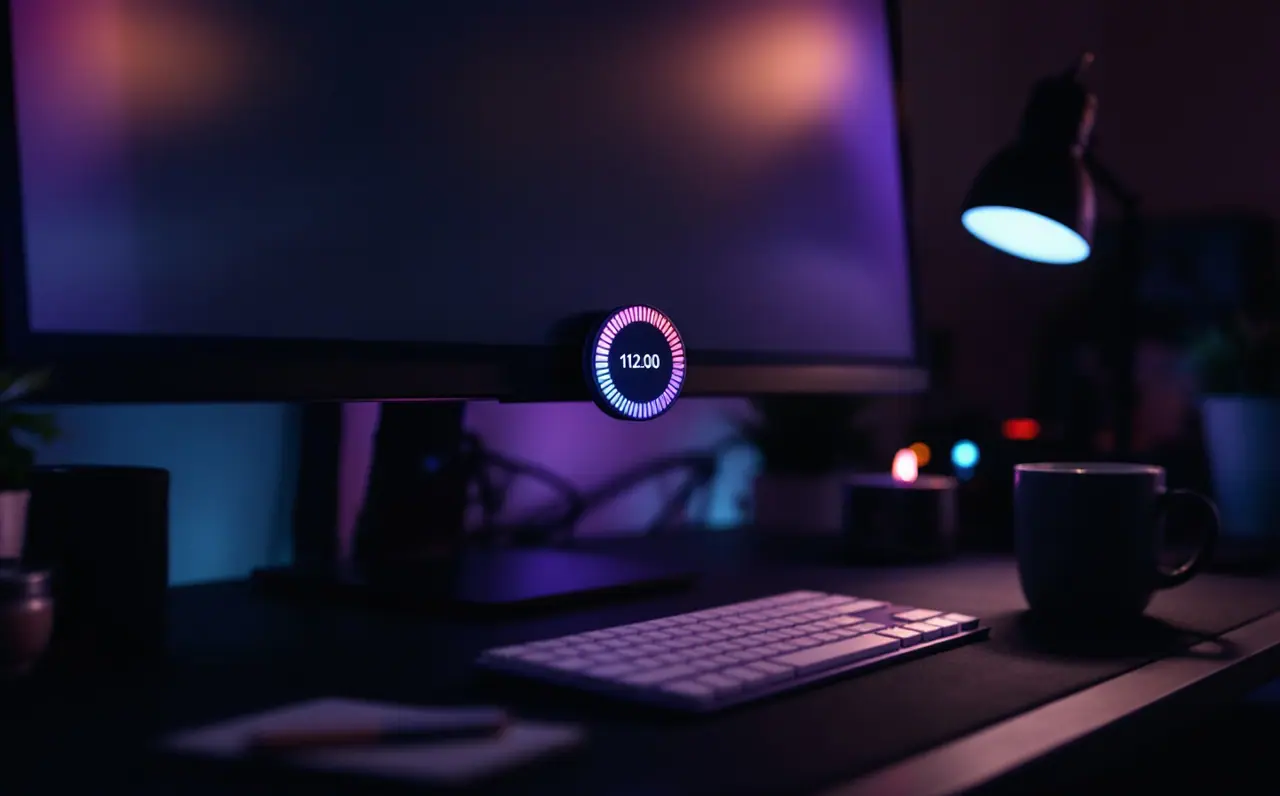
Most people start caring about monitor calibration on the day a print comes back. The file looked warm and glowing on screen, and the paper version is dark, a bit green in the shadows, and nothing like what they painted. The printer is rarely the main problem. The screen they painted on was simply too bright and slightly off in color, and every decision about value and hue was made against that.
Calibration is the fix for the part of this you can control. It will not turn a cheap panel into a reference display, and it does nothing about how other people's phones show your work. What it does is give you a known, repeatable starting point, so that a mid gray is a mid gray and the shadows you painted are the shadows that exist in the file. This guide walks through the process in the order I would do it at a desk, with the targets that make sense for drawing and painting and a simple check you can run afterwards.
Macagora note A few links here go to Amazon. As an Amazon Associate I earn from qualifying purchases.
What calibration actually does
The word covers two jobs that usually happen in one session.
The first is calibration proper: adjusting the monitor (its brightness and, if it has them, its red, green and blue gain controls) and the graphics output so the screen hits a set of targets. White should sit at a chosen color temperature, brightness at a chosen level, and the steps from black to white should follow a chosen curve.
The second is profiling. Once the screen is as close to the targets as it can get, the software measures what it actually does and writes that into an ICC profile, a small file that describes the display's real behavior. Color-managed programs such as Photoshop, Krita, Affinity Photo and Clip Studio Paint read that profile and translate your file's colors into the values this particular screen needs. The International Color Consortium, which maintains the profile standard, explains the idea at color.org.
You cannot do either job well by eye. Eyes adapt within minutes to almost any white, which is exactly why a blue-tinted screen stops looking blue after a while. A colorimeter does not adapt.
What you need before you start
- A colorimeter. This is the small puck that hangs on a cord over the screen. Calibrite and Datacolor make the common ones for home studios. A spectrophotometer measures more precisely and can also profile printers and paper, but for a monitor alone a colorimeter is the usual tool.
- Software. The maker's own program works and is the simplest choice. DisplayCAL, a free program built on the open source ArgyllCMS engine, supports most colorimeters and gives you more control over targets.
- About 45 minutes, a room you can dim, and a little patience with the monitor's on-screen menu.
Step 1: Prepare the screen and the room
Turn the monitor on and leave it running for at least 30 minutes before you measure. Backlights shift slightly as they warm up, and measuring a cold screen produces a profile that is wrong by lunchtime.
While it warms, strip out everything that changes the picture on its own:
- Put the monitor in its standard, custom or user mode, not a game, movie or eco preset.
- Switch off dynamic contrast, ambient light sensors and any "eye care" blue reduction.
- Turn off Night Shift and True Tone on a Mac, Night Light on Windows, and any third-party warm-screen utility.
- Set the screen to its native resolution and leave the operating system's own brightness slider alone during the run.
Then sort out the room. Close the blinds or wait for evening, and switch on the lamps you normally draw by. You want the light during measurement to be the light you work in, because the brightness target you choose next only makes sense against your real room.
Step 2: Choose your targets
This is where most of the confusion lives, so here is the short version.
| What the work is for | White point | Tone curve | Brightness |
|---|---|---|---|
| Screen work, posting online | D65 (about 6500K) | Gamma 2.2 or the sRGB curve | Around 120 cd/m² |
| Matching prints in a normal room | D65, or slightly warmer if prints look cool beside the screen | Gamma 2.2 | 80 to 100 cd/m² |
| A bright room you cannot dim | D65 | Gamma 2.2 | A little higher, but write the number down |
D65 is the white point of sRGB, the color space most of the web and most phones assume, so it is the sensible default for drawing. Gamma 2.2 describes how quickly values climb from black to white, and it matches sRGB closely enough for painting purposes.
Brightness is the setting that causes most dark prints. Many monitors leave the factory far brighter than 120 cd/m² (candelas per square meter, the same unit people call nits), because bright screens look good in a shop. Paint on a very bright screen and you will make everything darker to compensate. Paper reflects light; it cannot glow. Bringing the screen down toward 80 to 100 cd/m² when you prepare work for print brings the two much closer together.
If you have a wide-gamut monitor, let the software profile its native gamut and rely on color management to handle sRGB files. Some wide-gamut monitors also have an sRGB mode that clamps the panel; if the maker's spec page says that mode is factory calibrated, it is worth measuring both and comparing.
Step 3: Run the measurement
Tilt the screen back a few degrees so the puck lies flat against the glass rather than swinging, and place it where the software's on-screen outline shows, usually the center. Keep the cord's weight from pulling it off the surface; I loop the cord once over the top of the monitor and leave the counterweight hanging behind.
Many programs start with an interactive stage. They show live readings while you adjust the monitor's own brightness (and RGB gains, if it has them) until the bars line up with your targets. Do this part carefully. Every adjustment you make in the monitor's hardware is one the profile does not have to fake in software, and software corrections on an 8-bit signal can introduce faint banding in smooth gradients.
After that, the screen flashes through patches of color for 10 to 30 minutes, depending on how thorough a setting you chose. Do not touch the mouse or let the screen saver start. When it finishes, the software saves the profile and usually sets it as the system default.
Step 4: Check that the profile is actually in use
A profile that is not loaded is just a file in a folder.
On a Mac, open the Displays section of System Settings and look at the color profile setting in recent versions; your new profile should be selected. On Windows, open Color Management, choose the monitor, tick the option to use your settings for this device and make sure the new profile is the default. Only one program should be loading calibration at startup. If both the maker's utility and DisplayCAL's loader run, they can fight, and the last one to load wins.
Then check your painting programs. Photoshop and Affinity read the system profile automatically. In Krita, the color management page of the settings has an option to use the system monitor profile; make sure it is on. Clip Studio Paint has its own color settings, and the menu location has moved between versions, so search its help for color management if you cannot find it.
Step 5: A gray ramp you can read at a glance
Here is a check that takes five minutes and tells you more than any summary screen.
Make a new canvas 2,100 pixels wide and 300 pixels tall. Divide it into 21 blocks, each 100 pixels wide. Fill the first block with pure black and step up by 5 percent brightness each time, with saturation at zero: 0, 5, 10, and so on to 100, which is pure white. Twenty-one blocks at 100 pixels each fills the 2,100 pixels exactly.
Now look at it at 100 percent zoom, from your normal drawing distance.
- Every block should be distinguishable from its neighbors. If 0, 5 and 10 merge into one black, shadows are being crushed and you will paint them too light to compensate. If 90, 95 and 100 merge, highlights are clipping.
- The middle blocks, around 40 to 60, should look neutral. A faint green, magenta or yellow tint in the midtones means the profile is not loaded or the hardware adjustment drifted.
- The step from block to block should feel even. A sudden jump somewhere in the middle often points to a second calibration loader overriding the first.
Save the file. Opening it after every recalibration, and after operating system updates, is the quickest way to notice when something has quietly reset.
How often to recalibrate
Screens drift as their backlights age, and new monitors drift fastest in their first months. If you prepare files for print or client work, every two to four weeks is a reasonable rhythm. For hobby painting that only lives online, every month or two is plenty. Most calibration software can remind you.
Recalibrate sooner after anything that might change the picture: a graphics driver update, a major operating system update, moving the desk to a different room, or changing the monitor's mode by accident.
The room matters as much as the screen
A perfectly calibrated monitor beside a sunny window will still look different at 9 a.m. and 4 p.m., because your eyes judge it against the room. A few habits help more than you would expect.
Keep the light behind and around the screen steady and roughly neutral. Strong colored walls directly behind the monitor tint your perception of it, which is why studios that care about this tend toward gray. A monitor hood, even a homemade one from black card, cuts reflections from lamps and windows. For judging prints, a lamp sold as a daylight or 5000K viewing light gives you a consistent reference; D50 is the long-standing standard for viewing prints, which is why some people warm their screen target slightly when matching paper.
I keep a gray card propped against the lamp base. It is not a measuring tool, just a reminder of what neutral looks like when my eyes have spent three hours in an orange sunset painting.
What calibration cannot fix
It is worth being clear about the limits, so the colorimeter does not become a disappointment.
- Gamut. A panel that covers only part of sRGB still covers only part of sRGB afterwards. Calibration makes it accurate within what it can show; it cannot add colors.
- Uniformity. Many monitors are slightly brighter or tinted in one corner. Calibration measures one spot, usually the center.
- Viewing angle. Some panel types shift in color and contrast when you look at them from the side, and no profile corrects for where your head is.
- Pen displays. These can usually be profiled like any other monitor, and some makers publish their own calibration tools, so check the support page for your model. Etched anti-glare glass can make a puck sit unevenly; hold it gently flat. If you are still deciding between a display and a screenless tablet, the trade-offs are laid out in pen display or pen tablet.
- Tablets and phones. iPads and most Android tablets do not load custom profiles the way a desktop does. Turning off True Tone and Night Shift (or their Android equivalents) at least keeps them consistent from day to day.
- Other people's screens. Your viewers will see your work on whatever they own. Calibration means the file itself is right, so it looks as intended on accurate screens and degrades predictably on the rest.
If you are building a setup from scratch, the gear and room choices around the monitor are collected on the drawing desk page, and more setup guides sit in the studio section.
One last habit before you close the software: write your targets and the date on a sticky note on the back of the monitor. Six weeks from now, when a print looks odd, the first question will be what the screen was set to, and the answer will be right there.

Margo Ellery
Margo cares about what surrounds the drawing: monitors, color calibration, desk height, lamps and the books she keeps returning to. She writes the studio and setup guides.
More from the same shelf
A drawing desk setup that is kind to your wrists
A ten-point desk check for digital artists: desk and chair height, tablet angle, mapping, gloves, light and breaks, with a worked desk height example.
Open the piece →