
Pen display or pen tablet: which one suits the way you draw
Hand-eye learning curve, parallax, heat, desk depth, posture and cost, weighed one at a time, so you can tell whether a screen under the pen is worth it.
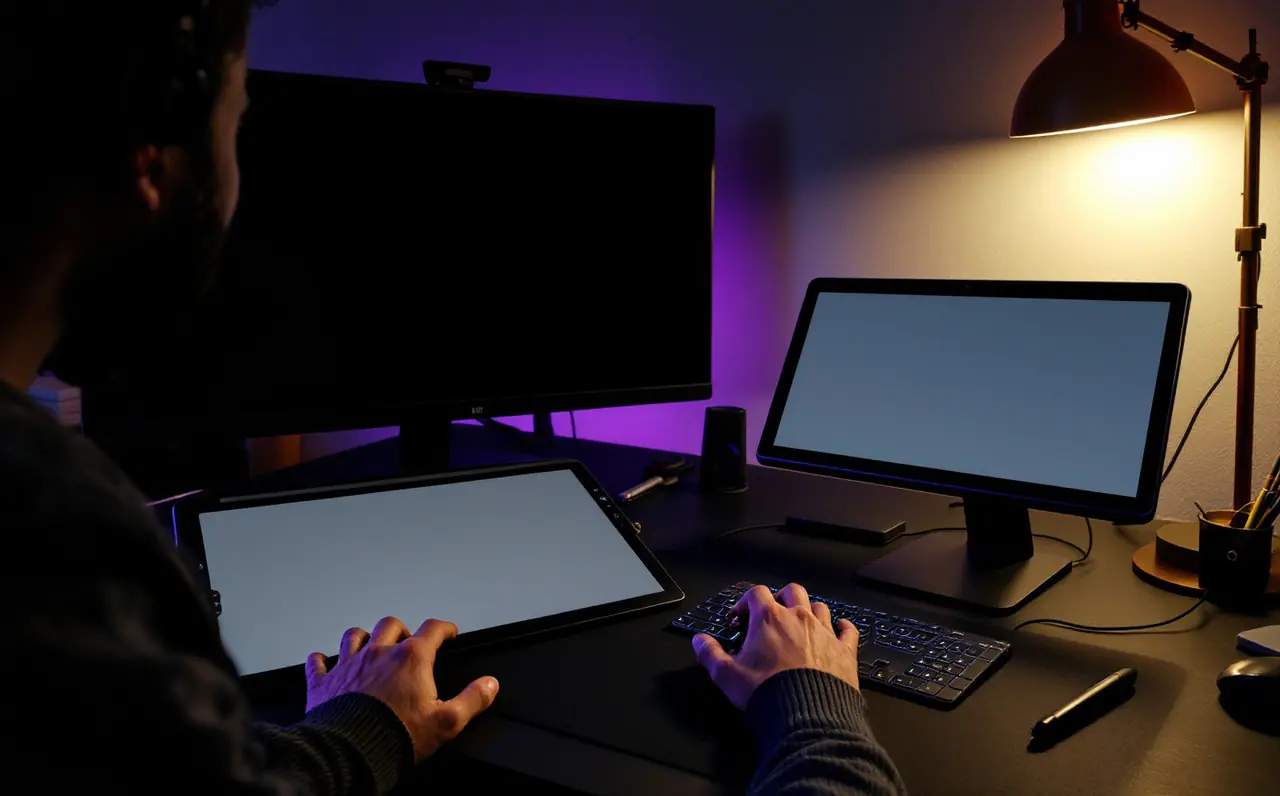
The question sounds like a matter of taste, and partly it is. But most of the answer comes from things you can measure or predict: how deep your desk is, how long you draw in one sitting, how you hold your neck, and whether the first two weeks of drawing on a screenless tablet will make you quit. Here is the short version, then each factor in turn.
| Factor | Pen tablet (no screen) | Pen display |
|---|---|---|
| Learning curve | A few days to a couple of weeks of odd, wobbly lines | Close to drawing on paper from the start |
| Parallax | None, you are not looking at the pen tip | A small gap between glass and image, less on laminated screens |
| Desk space | About a sheet of paper | A second screen lying on the desk, plus a stand |
| Heat | None worth mentioning | The glass gets warm on long sessions |
| Posture | Head up, looking at your monitor | Easy to hunch unless it sits on a stand |
| Hand in the way | Never | Your hand covers part of the drawing |
| Color | Whatever your monitor shows | Depends on the display panel |
| Cables | One USB lead, or none with Bluetooth | Video, data and often a separate power brick |
| Cost | Lower | Usually several steps higher at the same brand tier |
If you skimmed that and already know your answer, fine. If not, the rows that tend to decide it are the learning curve, the desk and your neck.
Macagora note A few links here go to Amazon. As an Amazon Associate I earn from qualifying purchases.
The learning curve, honestly
With a screenless tablet your hand moves on the desk while your eyes stay on the monitor. The brain has to learn that a short sideways move down there means a longer sideways move up there. For the first sessions, lines overshoot, circles come out as eggs, and you will lift the pen to check where it is. This passes. Most people find it stops feeling strange somewhere between a few days and a couple of weeks of regular drawing, and after that it is just how drawing works.
A pen display skips that phase. The line appears under the nib, so the hand-eye habits you built on paper carry straight over. For someone who already draws confidently in sketchbooks and wants that same directness, this is the strongest argument for a display, and it is a good one.
The edge goes to the display, but only for the first weeks. After that the tablet has caught up, so ask yourself whether you are buying for week one or for year two.
Parallax and the gap under the glass
On a pen display there is a thin layer of glass between the nib and the pixels. Looking at the screen from an angle, the cursor can sit slightly apart from the point of the nib. That offset is parallax. Many current displays use laminated screens, where the glass is bonded directly to the panel, and that shrinks the gap to the point where most people stop noticing. Older or more basic panels without lamination show more of it, especially near the edges.
Every display driver includes a calibration step where you tap a few targets. Do it from the posture you actually draw in, not from standing up after unpacking. A screenless tablet has no parallax at all, because you never look at the nib.
If parallax is the factor that worries you, look for "laminated" on the spec page and set your calibration properly. On that point the tablet wins by default, while a laminated display is close enough for most hands.
Desk depth: a worked example
This is where displays surprise people, so measure before you buy. A 15.6-inch display with a 16:9 shape has a picture area about 13.6 inches wide and 7.7 inches tall (the diagonal times 0.872 and times 0.49; the screen calculator does it for other sizes). The body, with bezels and any buttons, is usually closer to 16 by 10 inches. Check the maker's spec page for the real number.
Now picture a common desk 24 inches deep:
- Pen display lying almost flat, front edge near your belly: about 10 inches of depth.
- Keyboard behind it: about 6 inches.
- Monitor stand foot behind that: often 8 or 9 inches.
That adds up to 24 or 25 inches, and you have not left any room for your forearms. Something has to give. Usually the keyboard moves to the side, or onto your lap, or the monitor goes onto an arm so its foot leaves the desk. On a stand tilted up toward you the display takes a little less depth but more height, and it can block the bottom of the monitor.
A medium screenless tablet, by contrast, takes about the footprint of a sheet of letter or A4 paper and slides in beside the keyboard. The tablet wins this one clearly, unless your desk is deep.
Heat, glare and a glove
Pen displays produce warmth like any screen, and your palm sits on it for hours. It is not dangerous, just sweaty, and a sweaty palm drags. That is why so many display users wear a two-finger drawing glove: it covers the side of the hand that touches the glass, cuts friction and keeps smudges off. Glossy glass also reflects lamps and windows, so a matte surface or a paper-feel film helps if your room is bright.
A screenless tablet stays at room temperature and has nothing to reflect. Tablet again, but a glove fixes most of this for the display.
Posture and your neck
A screenless tablet lets you sit like an office worker: monitor at eye height, back against the chair, forearm on the desk. A display placed flat on the desk pulls your head forward and down, and that is the posture people complain about after long sessions. The fix is a stand that props the display up at an angle, so you are looking at it more directly, combined with a chair high enough that your forearm rests rather than reaches.
None of this is medical advice; if you have neck, shoulder or wrist pain, or any numbness, see a doctor or physiotherapist rather than buying hardware to solve it. As a matter of habit, though, the tablet makes good posture the default and the display makes it something you set up on purpose.
Hand in the way, and seeing the whole picture
On a display your drawing hand covers part of the image, just like on paper. Most people adapt by rotating the canvas and zooming out often. On a tablet you see the entire canvas all the time, which makes it easier to judge composition and proportion while you work. Some illustrators find this alone is reason to stay screenless. Others never notice. Call this one a draw that leans toward the tablet.
Cables and color
A screenless tablet needs one USB lead, or none with Bluetooth. A display needs video, data and usually power. Some models run on a single USB-C cable from a computer port that carries video (check that your port supports it, because many do not), while others use a three-in-one cable that splits into HDMI, USB and a power plug. Find out which before you order, especially on a laptop.
On color, a tablet shows your art on whatever monitor you already have. A display adds a second panel, and its color coverage varies by model. If you print or sell work, check the spec page for the color coverage figures and plan to calibrate both screens.
Cost
At the same brand and tier, a display usually costs several steps more than a screenless tablet with a similar pen. You are paying for a screen. That is fair, but it means the screenless option leaves money for a second pen, a better chair or a stand for the monitor.
Who should pick which
Pick a screenless pen tablet if
- This is your first tablet and you are not sure how much you will draw.
- Your desk is shallow, shared, or already crowded.
- You work in long sessions and care about sitting upright.
- You mostly paint, do concept work, or edit photos, where seeing the whole canvas matters more than landing each line.
A medium-sized screenless tablet suits most people in this group. For sizes and specs, the guide on choosing your first drawing tablet goes through active area, pressure and drivers.
Pick a pen display if
- You already draw confidently on paper and want that directness back.
- You ink a lot, trace clean lines over sketches, or letter comics, where precision on the spot matters.
- You have a deep desk, or you are willing to put the monitor on an arm.
- You will buy a stand and a glove along with it, not later.
Consider a third option
If what you want is drawing on a screen but away from a desk, a tablet computer with a stylus is a separate category worth considering. The mobile drawing section covers those.
A last practical point: whichever you pick, put the most money into the part you touch. The pen, the surface feel and the stand (for a display) shape every session. A bigger screen size or an extra button barely registers once you are drawing.

Darius Fenn
Darius moved from pencil sketchbooks to a small pen tablet years ago and kept going. He writes the hardware pieces here: pen tablets, pen displays, nibs, drivers and how to buy second hand without regret.
More from the same shelf
Setting up express keys and shortcuts you will actually use
A step-by-step way to map pen buttons, express keys and dials to undo, brush size, color picking and rotation, with per-app profiles and keyboard backups.
Open the piece →
Pressure curves explained, and the mistakes I made with mine
What a pressure curve does, where the driver and app versions live, how to tune one with a simple stroke test, and the mistakes that make a good pen feel bad.
Open the piece →
How to choose your first drawing tablet
Size, pressure, tilt, drivers and what each tier really gets you: a plain guide to picking a first drawing tablet you will still like a year from now.
Open the piece →