
A drawing desk setup that is kind to your wrists
A ten-point desk check for digital artists: desk and chair height, tablet angle, mapping, gloves, light and breaks, with a worked desk height example.
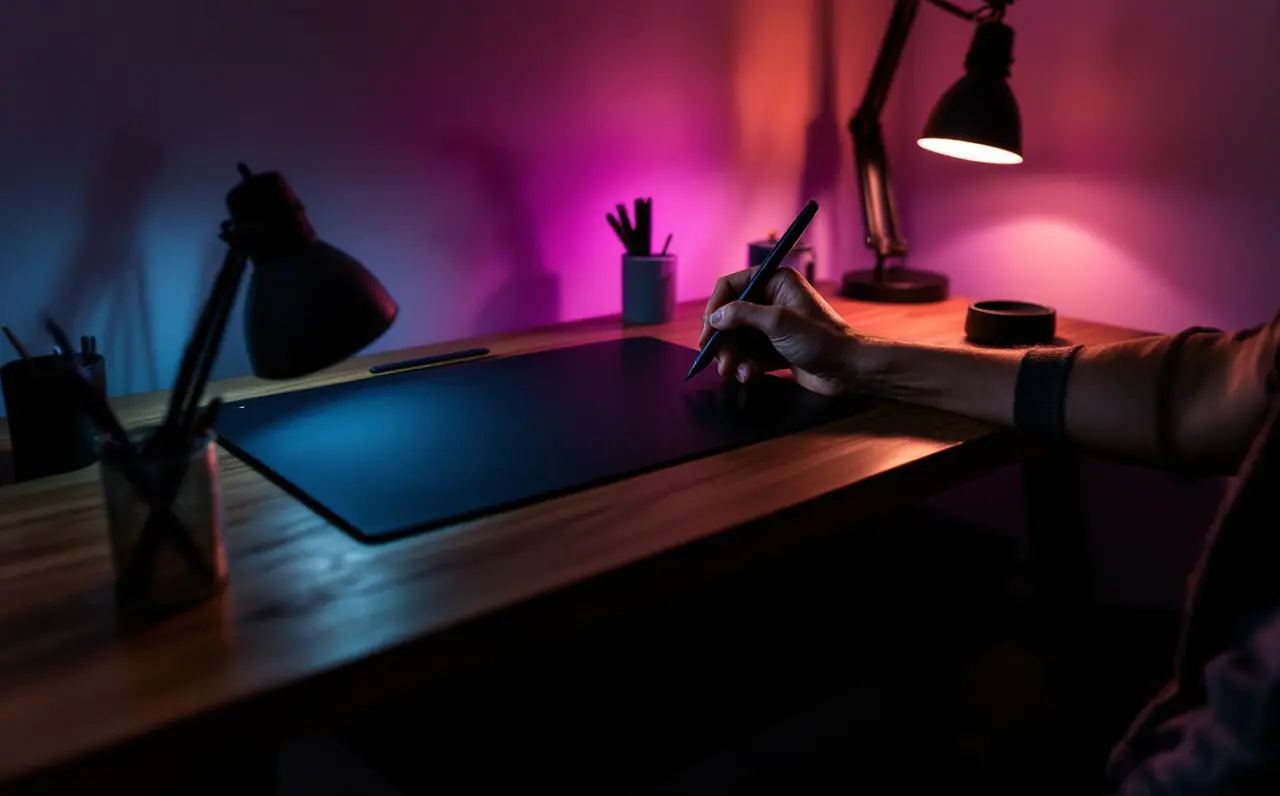
Drawing on a tablet asks the same few joints to do small, precise movements for hours. Most of the discomfort people describe after a long session comes less from the tablet itself than from what surrounds it: a desk a few centimeters too high, a chair set for typing, a screen that pulls the head forward, a hand gripping the pen like it might escape.
This piece is a checklist. Work through it with a tape measure and the desk you actually draw at, and change one thing at a time so you can tell what helped. Everything here is general comfort advice for healthy people setting up a workspace. It is not medical advice. If you have pain, tingling, numbness or weakness in your hands, wrists, arms or neck, or discomfort that lingers after you stop drawing, see a doctor or a physiotherapist before you start rearranging furniture. They can look at you; a checklist cannot.
Macagora note A few links here go to Amazon. As an Amazon Associate I earn from qualifying purchases.
Before you start: sit as you really draw
Do the checks in the position you use for real work, not the upright pose people adopt when they know they are being measured. Put your tablet where it usually lives, pick up the pen and draw a few loose circles. Then freeze and look at your body from the elbows out.
The checklist
1. Elbow height against the drawing surface
This is the measurement that matters most, and it is the one most desks get wrong for drawing.
Sit with your feet flat, shoulders dropped and upper arms hanging loosely at your sides. Bend your elbow so your forearm is roughly level. The top of the tablet, where your hand rests, should be at about that height or a little below it. If the surface is higher, your shoulders creep up and your wrist bends back to reach it. If it is much lower, you lean forward and hang from your neck.
Here is a worked example. Say the floor to the underside of your bent elbow is 66 cm. A screenless tablet adds roughly 1 cm, so the desk top should sit somewhere around 63 to 65 cm. Many standard desks are in the region of 72 to 76 cm. That gap of about 10 cm is the reason so many people draw with raised shoulders. The fixes, in order of cost: raise the chair until your elbows clear the desk top properly, then add a footrest so your feet stay flat; or use a keyboard tray that holds the tablet lower; or move to a height-adjustable desk.
2. Chair height and feet
Once the chair is set for your elbows, check your feet. They should rest flat, on the floor or on a footrest, with your thighs roughly level. A box, a sturdy stack of old books or a proper footrest all work. Feet dangling from a raised chair pull your weight forward onto the desk edge, and from there onto your forearms.
3. The desk edge under your forearm
Run your hand along the front edge of the desk. A hard, square edge pressing into the underside of the forearm is a common source of discomfort during long sessions. A rounded edge, a soft wrist rest set back from the edge, or simply sliding the tablet further forward so the whole forearm rests on the desk all spread the contact over a wider area.
4. Tablet angle and position
A screenless tablet flat on the desk is fine for many people. If you find your wrist bending upward to meet it, a slight tilt toward you, raised at the far edge by a few centimeters, can bring the hand into a straighter line with the forearm. Some tablets have fold-out feet; a firm book under the top edge does the same job.
Position matters as much as angle. Most people draw more comfortably with the tablet slightly off center, toward the drawing hand, so the elbow can stay close to the body. If you shift the tablet, shift the keyboard too, so the other hand is not reaching across.
Pen displays are heavier and tilt more. Most come with or support a stand with several angles. A steeper angle brings the screen toward your eyes and reduces neck bending, while a flatter one supports the forearm better. There is no single correct angle: try two or three for a week each and keep the one where both your neck and wrist feel neutral. The pros and cons of each type for posture are compared in pen display or pen tablet.
5. Mapping and tablet size
The ratio between tablet and screen changes how much your hand has to move, and that changes which joints do the work.
Take a small screenless tablet with an active area of roughly 15 by 9.5 cm, mapped to a 27-inch 16:9 monitor, which is about 60 cm wide. The ratio is about 4 to 1. A 2 cm stroke on screen needs only 5 mm of movement on the tablet. Strokes that small tend to come from the fingers and a flicking wrist, which is tiring over hours. A medium tablet with an active area around 22 cm wide brings the ratio down to under 3 to 1, and longer strokes start to come from the elbow and shoulder instead.
You do not have to buy anything to experiment. Zooming in on the canvas has a similar effect for detail work, and most drivers let you map the tablet to part of a large monitor rather than all of it. If you are choosing hardware anyway, a small tablet in the Wacom Intuos Small class suits a laptop and a compact desk, while a medium tablet such as the Huion H640P class gives longer strokes room on a bigger monitor.
6. Grip and pressure
Watch your hand while you draw a slow curve. Are your knuckles white? Is the pen pinched near the tip?
A lighter grip, held a little further back from the nib, generally feels easier over long sessions. Many people press harder than they need to because the pressure curve in the driver or app is too stiff, so they have to push to get a full-width line. Softening the curve lets a relaxed hand reach the full range; the details are in pressure curves explained. Some pens accept a thicker grip sleeve, and a slightly wider barrel is easier to hold loosely for some hands.
7. A drawing glove
A two-finger glove, the kind that covers the little finger and ring finger and the side of the palm, does two things. It lets the side of your hand slide over the surface instead of sticking, which matters most on pen displays and glossy screens. It also keeps skin oils off the surface. A hand that glides does not have to lift and replace itself every few strokes, and many artists find that makes long hatching sessions noticeably less tiring.
8. Screen height and distance
Wrists do not work in isolation. If your neck is craned forward, your shoulders follow, and the forearm changes angle with them.
For a separate monitor, a common starting point is the top of the screen at about eye level and the screen roughly an arm's length away. People who wear progressive lenses often prefer it a little lower. For a pen display, the stand angle does most of this work, so revisit point 4 if you find yourself bending over it.
9. Light on the desk
This one is personal for me. A lamp placed where it reflects in the screen makes you shift your head to dodge the glare, and you end up drawing in a slightly twisted position without noticing. Put the main lamp to the side, opposite your drawing hand so the hand does not cast a shadow over a paper sketch, and aim it at the desk, not the screen. Keep the room light steady enough that the screen is not the only bright thing in view. If you also care about color accuracy, the same lamp choices affect how you judge your colors; that side of it is covered in calibrating a monitor for drawing.
10. Breaks you will actually take
Even a perfect desk does not help if you sit at it without moving for four hours. Short, regular breaks are the habit that most comfort advice agrees on.
What works for me is a timer set for 25 to 30 minutes. When it goes off, I put the pen down, stand up, let my arms hang and shake out my hands, look at something across the room for a little while and refill my water. That is under two minutes. Changing task also counts: switch from detailed rendering to blocking in a background, or from drawing to picking reference photos. If you want to stretch, ask a physiotherapist to show you what suits you rather than copying a routine at random.
A quick weekly re-check
Furniture drifts. Chairs sink, stacks of reference books migrate under the tablet, and a new monitor arrives at a different height. Once a week, before you start, take 60 seconds:
- Elbows at or just above the drawing surface?
- Feet flat?
- Tablet toward the drawing hand, keyboard following it?
- Lamp reflection out of the screen?
- Timer set?
If your setup changes a lot between home and somewhere else, such as a laptop on a kitchen table, a small tablet and a folded towel to raise the chair seat can get you surprisingly close to the same position.
What to do if something hurts
Stop adjusting and get it looked at. Pain, tingling, numbness, weakness, or a hand that feels clumsy are reasons to see a doctor or physiotherapist, not reasons to buy a new pen. Mention that you draw for long periods and, if you can, show them a photo of your desk taken from the side. It gives them far more to work with than "I use a tablet."
For the gear side of a comfortable setup (stands, gloves, lamps and tablets in different sizes), the current list is on the drawing desk page. Take the tape measure with you when you look at it: the elbow height from point 1 is the number that decides most of the rest.

Margo Ellery
Margo cares about what surrounds the drawing: monitors, color calibration, desk height, lamps and the books she keeps returning to. She writes the studio and setup guides.
More from the same shelf
Calibrating a monitor for drawing and painting
What calibration does for digital art, how a colorimeter works, which targets to pick for screen or print, and the limits no profile can fix.
Open the piece →