
Getting canvas size and DPI right for print before you start
How to turn a print size into pixels before you paint: the one formula, worked examples for 8 x 10 and A4, bleed, aspect ratios and what 300 DPI really means.
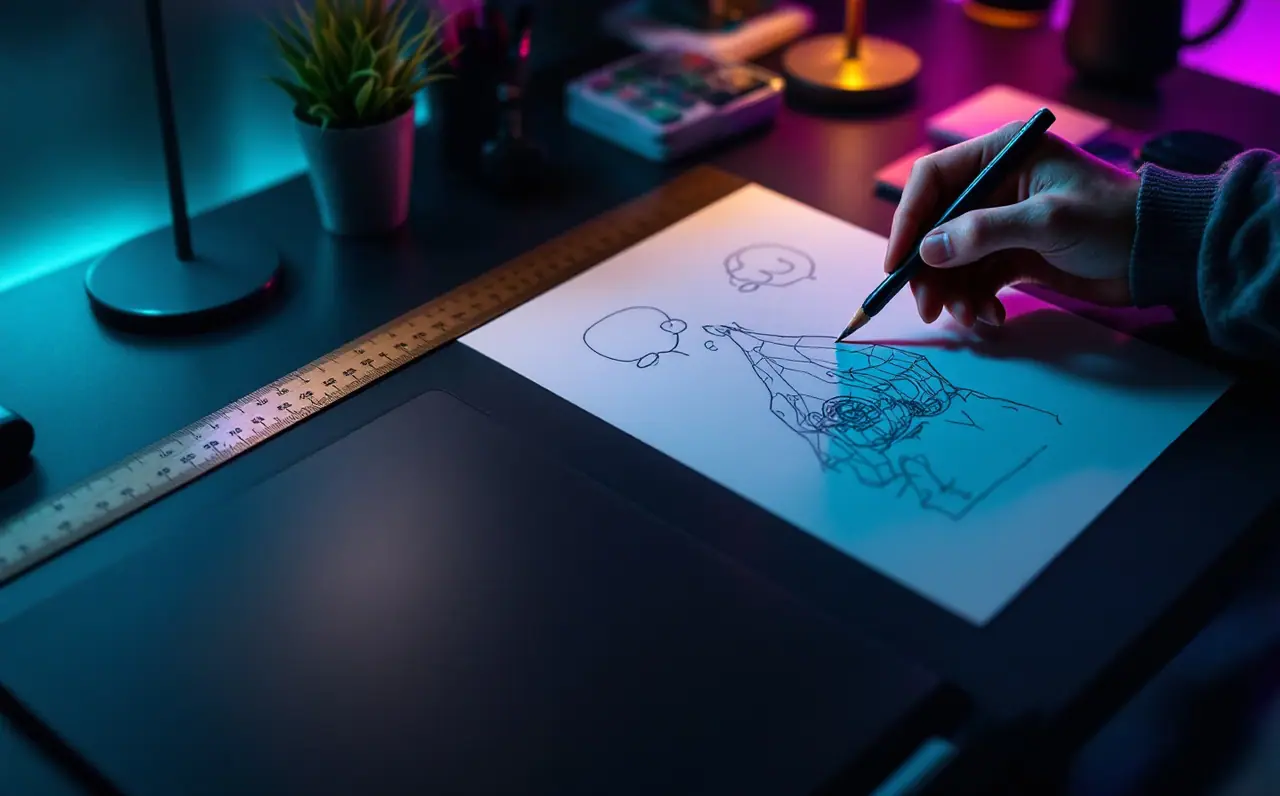
Most print problems start long before the printer. They start on the evening you open a new file, type in a size that looks generous, and paint for twenty hours on a canvas that turns out to be too small, the wrong shape, or both. I am the sort of person who opens the New File dialog and reads every field before touching any of them, and this is the one place where that habit pays off every single time.
The good news: the arithmetic is short. There is one formula, one unit conversion and two extra rules (bleed and aspect ratio). This piece walks through all of it with worked numbers, and if you would rather not do sums at all, the canvas calculator does them for you.
The one formula
Pixels are what your painting program stores. Inches or millimeters are what the printer produces. DPI (strictly PPI, pixels per inch, but everyone says DPI) is the bridge between them:
pixels = inches x DPI
If your size is in millimeters, convert first. One inch is exactly 25.4 mm:
inches = millimeters / 25.4
That is genuinely all of it. Everything below is that formula applied to real cases.
Worked example 1: an 8 x 10 inch print
You want an 8 x 10 inch print at 300 DPI.
- Width: 8 x 300 = 2,400 pixels
- Height: 10 x 300 = 3,000 pixels
So your canvas is 2,400 x 3,000 pixels. Set that in the New File dialog, set the resolution field to 300, and the program's print size readout should say 8 x 10 inches. If it does, you typed it correctly.
Macagora note A few links here go to Amazon. As an Amazon Associate I earn from qualifying purchases.
Worked example 2: an A4 print
A4 is 210 x 297 mm. Convert to inches, then multiply:
- Width: 210 / 25.4 = 8.27 inches, x 300 = 2,480 pixels (2,480.3, rounded)
- Height: 297 / 25.4 = 11.69 inches, x 300 = 3,508 pixels (3,507.9, rounded)
So A4 at 300 DPI is about 2,480 x 3,508 pixels. When a result lands between whole numbers, round to the nearest pixel or round up; one extra pixel never hurt anybody, and one missing pixel can leave a hairline of white at the edge.
Common sizes at a glance
Here are a few sizes worked out at 300 DPI, with 150 DPI alongside for large prints viewed from further away (more on that below).
| Print size | Shape (ratio) | Pixels at 300 DPI | Pixels at 150 DPI |
|---|---|---|---|
| 4 x 6 in | 2:3 | 1,200 x 1,800 | 600 x 900 |
| 5 x 7 in | 5:7 | 1,500 x 2,100 | 750 x 1,050 |
| 8 x 10 in | 4:5 | 2,400 x 3,000 | 1,200 x 1,500 |
| 11 x 14 in | 11:14 | 3,300 x 4,200 | 1,650 x 2,100 |
| 12 x 18 in | 2:3 | 3,600 x 5,400 | 1,800 x 2,700 |
| A5 (148 x 210 mm) | about 1:1.41 | 1,748 x 2,480 | 874 x 1,240 |
| A4 (210 x 297 mm) | about 1:1.41 | 2,480 x 3,508 | 1,240 x 1,754 |
| A3 (297 x 420 mm) | about 1:1.41 | 3,508 x 4,961 | 1,754 x 2,480 |
These are trim sizes, the size of the finished print. If your printer needs bleed, you add it on top.
Bleed: the bit beyond the edge
Printers cannot cut paper with perfect accuracy. If your painting runs right to the edge of the page, they ask for extra image beyond the trim line, so a slightly off cut still shows painting rather than a sliver of white paper. That extra margin is bleed.
A common figure is 0.125 inch (an eighth of an inch) per edge in the US, and 3 mm per edge for metric sizes. Printers vary, and some ask for more, so check your printer's spec or template before you start. The arithmetic is the same either way: bleed goes on every edge, so you add it twice to each dimension.
Worked example 3: the 8 x 10 print with 0.125 inch bleed.
- Width: 8 + 0.125 + 0.125 = 8.25 inches, x 300 = 2,475 pixels
- Height: 10 + 0.125 + 0.125 = 10.25 inches, x 300 = 3,075 pixels
Each 0.125 inch edge is 37.5 pixels at 300 DPI, which is why the totals grow by 75 pixels.
Worked example 4: A4 with 3 mm bleed.
- Width: 210 + 3 + 3 = 216 mm, / 25.4 = 8.50 inches, x 300 = 2,551 pixels
- Height: 297 + 3 + 3 = 303 mm, / 25.4 = 11.93 inches, x 300 = 3,579 pixels
Bleed is not the same as a safe area. Anything that must not be cut off (a signature, a face, lettering) belongs well inside the trim line, not just inside the bleed. Many printers suggest a safe margin of an eighth to a quarter of an inch, or a few millimeters, inside the trim. Again, their template is the authority. I draw the trim and safe lines on a locked layer at the top of the stack and hide it before export.
Aspect ratio: the trap that bleed gets blamed for
Two prints can have the same area and completely different shapes. An 8 x 10 inch print is 4:5. A4 is roughly 1:1.41, noticeably longer and narrower. A painting made for one does not fit the other without either cropping or empty space.
Worked example 5: you painted at 2,400 x 3,000 pixels (8 x 10 at 300 DPI) and now someone wants an A4 print.
- Scale to fit the A4 width of 2,480 pixels: the height becomes 3,000 x (2,480 / 2,400) = 3,100 pixels. A4 needs 3,508, so you are 408 pixels short. That is 1.36 inches, about 34.5 mm, of paper with nothing on it.
- Scale to fit the A4 height of 3,508 pixels instead: the width becomes 2,400 x (3,508 / 3,000) = about 2,806 pixels. A4 is only 2,480 wide, so about 326 pixels of your painting get cropped from the sides.
Neither option is a disaster, but both are decisions you would rather make before painting. If you know the piece might be printed at several sizes, leave some quiet background around the edges so it can be cropped either way.
The 300 DPI rule: myth and reality
300 DPI is a sound default for prints people hold in their hands or view up close: art prints, postcards, book pages. At that density individual pixels are too small to notice at reading distance. It is not a law of nature, though.
Posters and large prints are seen from further away, and many printers are happy with 150 to 200 DPI for those. A 3,000 x 4,000 pixel painting prints at 10 x 13.3 inches at 300 DPI, or at 20 x 26.7 inches at 150 DPI. Same file, same pixels; only the spacing changes.
Two clarifications clear up most of the confusion:
- The DPI number stored in a file is a label. Changing it from 72 to 300 without resampling does not add a single pixel. It only changes the print size the file claims to be. In image size dialogs, this is the difference between having resampling switched on or off.
- The DPI a printer advertises for its hardware is about ink dots, not your pixels. A printer's "dots per inch" and your image's pixels per inch are different numbers that happen to share a name.
Upscaling a finished painting to reach 300 DPI makes the file bigger without adding real detail. Soft brushwork tolerates it better than crisp line art, but it is always better to start large enough. A screen-sized 1,920 x 1,080 painting, for example, only covers 6.4 x 3.6 inches at 300 DPI.
A checklist before you start a print piece
- Ask the printer (or check its site) for trim size, bleed, safe area and preferred file format.
- Convert trim plus bleed into pixels with the formula, or with the calculator.
- Confirm the program's print size readout shows the size you expect.
- Check the aspect ratio of every size the piece might be printed at.
- Put trim and safe lines on a locked guide layer.
- Save your layered master file and export the print copy separately. Our Krita beginner's week covers the difference between master files and exports.
- Before sending, check colors on a calibrated screen; our guide to calibrating a monitor for drawing explains why prints can look darker than the screen.
Questions people ask
Do I need to paint in CMYK for print?
Usually not, at least not while painting. Most artists paint in RGB and let the printer convert, or convert at the end using a profile the printer provides. Some printers want CMYK files and some prefer RGB, so ask before you export.
Can I just paint at 600 DPI to be safe?
You can, and line artists working in black and white often do, because crisp edges benefit from the extra density. For color painting, doubling the DPI means four times the pixels, which slows brushes and grows files a lot. Choose the size you need plus some headroom, not the biggest number available.
My printer asks for 0.125 inch bleed but my page size is in millimeters. Which do I use?
Use the printer's numbers in whatever units they give, and convert once. 0.125 inch is 3.175 mm, very close to the common 3 mm. Mixing the two without checking is how you end up a fraction short.
Does the resolution field matter for paintings that stay online?
Not really. Screens only care about the pixel dimensions. The resolution field only affects how big the file claims to be when printed, so for web work, think in pixels and ignore it.

Idris Kalu
Idris likes opening every menu in a program before deciding what it is good for. He writes about Krita, Clip Studio Paint, file formats, canvas sizes and preparing work for print.
More from the same shelf
Layers and blend modes for painters who hate menus
Multiply, screen, overlay, color, clipping masks and alpha lock explained for painters, with a short layer workflow that keeps a painting tidy and editable.
Open the piece →
Pressure curves explained, and the mistakes I made with mine
What a pressure curve does, where the driver and app versions live, how to tune one with a simple stroke test, and the mistakes that make a good pen feel bad.
Open the piece →
Clean digital line art, from rough sketch to fill-ready inks
A step-by-step inking routine for digital drawing: sketch opacity, stabilizers, line weight, flipping the canvas, cleanup and closing gaps for fills.
Open the piece →