
Pressure curves explained, and the mistakes I made with mine
What a pressure curve does, where the driver and app versions live, how to tune one with a simple stroke test, and the mistakes that make a good pen feel bad.
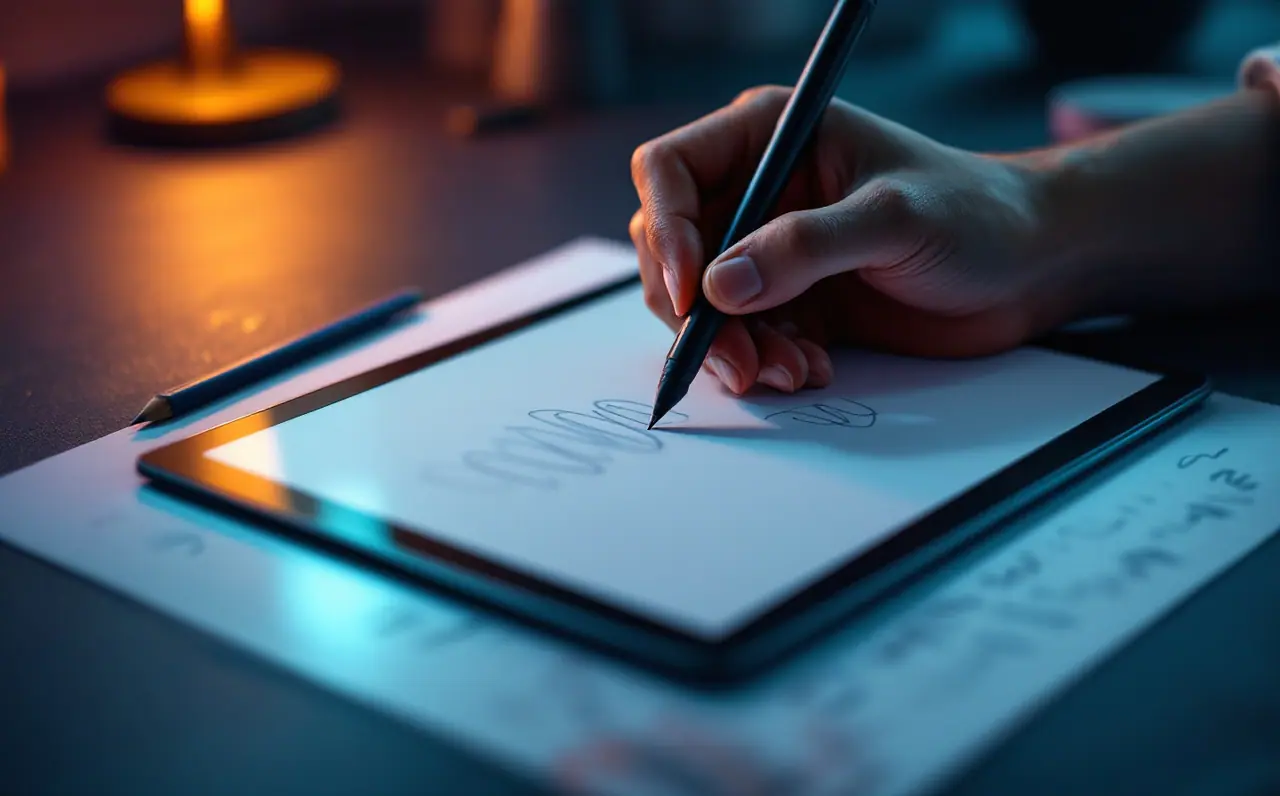
A pressure curve is a small graph that decides how hard you have to press for your brush to do anything interesting. It is also the setting most people never touch, or touch once in a fit of frustration and then forget. I belong to the second group, at least I did. I have pushed curves so far in both directions that my lines came out like wet string, and once set two curves against each other and blamed a perfectly good tablet for a week.
So this piece has two halves. The first explains what the curve is and where it lives. The second is a list of the mistakes I made, so you can make different ones.
What the curve actually shows
Your pen measures how hard the nib is pressed and sends that as a number. Many current pen tablets report 8,192 levels of pressure, and some newer models report more. The curve sits between that raw number and the brush.
Picture a square graph. Along the bottom is how hard you press, from the lightest touch on the left to your heaviest push on the right. Up the side is what the program receives, from nothing at the bottom to full strength at the top. Full strength means whatever the brush is set to do with pressure: full size, full opacity, or both.
A straight diagonal line is a linear curve. Press halfway and the brush gets half. Bend the line and the relationship changes:
| Curve shape | What it feels like | Who it tends to suit |
|---|---|---|
| Straight diagonal (linear) | Even and predictable | A starting point for everyone |
| Bowed upward (soft) | Light touches already give a strong mark | Light hands, quick sketching |
| Bowed downward (firm) | You need to push to get a heavy mark | Heavy hands, delicate shading |
| Gentle S-shape | Soft at both ends, steeper in the middle | Inkers who want clean tapers and solid middles |
| Flat at the top | Maximum output before maximum pressure | Rarely what anyone wants |
That last row matters more than it looks. When the curve reaches the top early, every press beyond that point produces the same result, so you lose control at the heavy end without noticing.
Two places a curve lives (sometimes three)
The first curve is in the tablet driver. Wacom's driver has a tip feel slider running from soft to firm, with a customize button that reveals the curve itself. Huion and XP-Pen drivers have a pressure section with a curve and a small test area where you can scribble. This curve affects every program you use.
The second is in your painting program. Krita has a global pressure curve on its tablet settings page, described in the Krita manual's tablet settings section. Clip Studio Paint has an adjust pen pressure option that asks you to draw a few strokes and builds a curve from them; recent versions keep it in the File menu on Windows and in the app menu on a Mac. Procreate keeps its pressure curve in the preferences under pressure and smoothing. Some programs offer no global curve at all, and then the driver is the only place to make a general change.
The third is the brush. Most programs let each brush map pressure to size, opacity, flow or texture with its own curve. That is where you shape how one particular ink pen tapers, not where you fix your whole hand.
The key fact: these curves stack. The driver bends the signal, then the program bends what is left, then the brush bends it again. Three gentle curves can add up to a very strange one.
Macagora note A few links here go to Amazon. As an Amazon Associate I earn from qualifying purchases.
Initial activation force, the part before the curve
Before any curve applies, the pen has to notice it is touching something at all. The force needed for that is called initial activation force, and makers list it in grams on spec sheets for many pens. A lower figure means the pen registers a lighter touch.
This matters for the very start of a stroke. If your light hatching keeps skipping or the first millimeter of a line goes missing, the curve can help a little by lifting the low end, but it cannot make the pen notice pressure it never registered. That is a hardware trait. If light strokes are your whole style, check the activation force figure on the maker's spec page when choosing a pen.
The stroke test
This is the worked example, and I do it every time I change a curve. Set everything linear first: driver curve linear, program curve linear. Pick a plain round brush with pressure controlling size only, and set the maximum size to 20 pixels so changes are easy to see. Then, on a blank canvas:
- Draw a ladder of five horizontal strokes, from the lightest pressure you can manage to the heaviest you would ever use, without straining.
- Draw three long strokes that go light, heavy, light, like a fish shape.
- Hatch a small square with quick parallel strokes, your normal speed.
- Write your name at normal handwriting pressure.
Now read the results. In a well-tuned setup, the five ladder strokes are clearly different widths, with the heaviest close to 20 pixels and the lightest a thin hairline. The fish strokes swell and taper smoothly. The hatching has no gaps at the starts of strokes. Your handwritten name sits somewhere in the middle of the width range, not at the top.
Suppose your heaviest comfortable stroke only reaches about half the brush size, so roughly 10 pixels out of 20. That tells you your hand is light relative to the pen. Bow the curve upward a little, repeat the test, and stop when the heaviest stroke reaches the maximum without the middle strokes all looking alike. If instead your name comes out at nearly full width, your hand is heavy and the curve should bow down a little.
Change one curve only, in small steps, and repeat the ladder after each change. Keep the old sheet next to the new one. A curve is easier to judge by comparison than by feel.
The mistakes I made
I adjusted the driver and the program at the same time
This was the week I blamed the tablet. I softened the driver curve, then softened Krita's global curve on top, then wondered why everything came out at full size. Pick one place for your general curve. I use the program's global curve for the program I draw in most and leave the driver linear, which keeps other programs predictable. Others do the opposite. Either works, as long as only one of them is bent.
I made the curve so soft that I lost the top end
A very soft curve feels lovely for about an hour. Lines appear with no effort, and sketching feels quick. Then you try to make a bold accent line and find there is no "more" left, because ordinary pressure already hits the ceiling. The ladder test catches this straight away: if the third, fourth and fifth strokes look the same, you have flattened the top.
I tuned the global curve to fix one brush
An ink pen that would not taper properly sent me to the global curve, which then made every other brush feel wrong. The fix belonged in the brush's own size curve. If one brush misbehaves and the rest are fine, edit that brush. Our guide to clean line art goes further into brush settings for inking.
I forgot the surface and the nib change the feel
A worn nib, a fresh nib and a textured screen film all change how much force your hand puts down, even with the same curve. When I fitted a textured film, I pressed harder without realizing it and spent a while correcting a curve that was fine. If you are thinking about films, read our piece on paper-feel screen protectors first, and rerun the stroke test after fitting one.
I copied somebody else's curve
Curve settings shared online are tuned to someone else's hand, pen, surface and brushes. They make a fine starting point if you know the person draws the way you do. Mostly they don't. Five minutes with the ladder test beats any screenshot.
Light hands and heavy hands
If you have a light hand, a slightly soft curve saves strain and helps your lightest marks register. Watch the top end, as above. Light hands also tend to make the most of a pen with a low activation force.
If you have a heavy hand, a slightly firm curve gives you more room for control in the dark, heavy range. Heavy hands also wear nibs faster, so keep spares nearby. If you notice your grip tightening or your wrist aching through a long session, a softer curve can mean less effort for the same mark, but persistent pain or numbness is a reason to see a doctor or physiotherapist, not a reason to tweak settings.
Whatever your hand, a mid-sized screenless tablet such as a medium pen tablet gives you enough room for the long fish strokes in the test, which is where curve problems show most clearly. If you are still finding your way around Krita's settings pages, our Krita beginner's week shows where the tablet settings live, and the pen tablets section covers drivers and nibs in more detail.
A last practical point: save a screenshot of your curve once you are happy with it. Driver updates and program resets have a way of quietly returning everything to linear, and the stroke test is quicker when you know what you are aiming for.

Idris Kalu
Idris likes opening every menu in a program before deciding what it is good for. He writes about Krita, Clip Studio Paint, file formats, canvas sizes and preparing work for print.
More from the same shelf
Setting up express keys and shortcuts you will actually use
A step-by-step way to map pen buttons, express keys and dials to undo, brush size, color picking and rotation, with per-app profiles and keyboard backups.
Open the piece →
Getting canvas size and DPI right for print before you start
How to turn a print size into pixels before you paint: the one formula, worked examples for 8 x 10 and A4, bleed, aspect ratios and what 300 DPI really means.
Open the piece →
Layers and blend modes for painters who hate menus
Multiply, screen, overlay, color, clipping masks and alpha lock explained for painters, with a short layer workflow that keeps a painting tidy and editable.
Open the piece →