
Clean digital line art, from rough sketch to fill-ready inks
A step-by-step inking routine for digital drawing: sketch opacity, stabilizers, line weight, flipping the canvas, cleanup and closing gaps for fills.
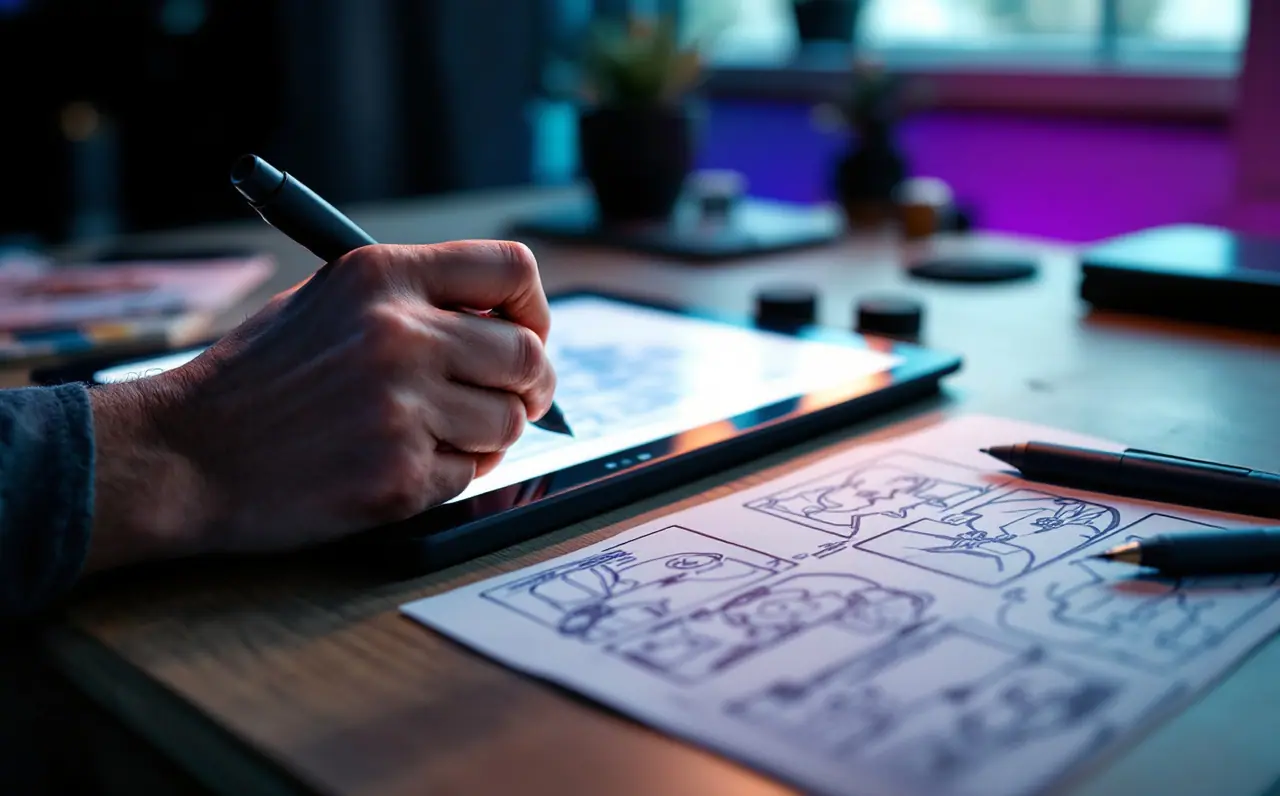
Clean line art is mostly a set of small decisions made before the pen touches the canvas. The stroke itself takes half a second. Everything that makes it look sure of itself (the faded sketch under it, the stabilizer amount, the angle of the canvas, the size of the brush) was settled earlier. I ink comics, and the pages where my lines wobble are almost always pages where I skipped one of those decisions because I was in a hurry.
This is the routine I follow, in order. It works the same in Krita, Clip Studio Paint, Procreate or Photoshop, because none of it depends on a particular brush. Where a program does something differently I say so, but menu names drift between versions, so treat those as signposts rather than exact paths.
Step 1: Fade the sketch until it stops arguing
Put your rough sketch on its own layer and drop its opacity to somewhere around 15 to 30 percent. Too dark and your eye cannot tell which lines are ink and which are pencil, so you end up tracing every hairy construction mark. Too light and you lose the gesture.
Two tricks help here. First, tint the sketch layer a single color, usually a light blue or red. In most programs you can lock the layer's transparency (alpha lock in Procreate, lock alpha in Krita) and fill it, or change the layer color in Clip Studio Paint's layer properties. Black ink over blue pencil is easy to read at a glance. Second, if your sketch is messy, do a second, tighter sketch on a new layer above it before you ink. It feels like wasted time. It isn't. Inking is the wrong moment to solve anatomy.
Keep the sketch, the inks and the flat colors on separate layers from the start. If you are new to Krita's layer docker, the calm first week guide walks through it.
Step 2: Set the canvas big enough to ink comfortably
Line art drawn small and then enlarged goes soft at the edges. Line art drawn very large and then shrunk hard loses its thin tapers, because a 3 pixel taper becomes 1 pixel and then disappears. I aim for a working size around twice what I need to deliver, then scale down once at the end.
A worked example: a web comic panel shown at 1,200 pixels wide. I ink it at 2,400 pixels wide. My main brush is 8 pixels at full pressure, which becomes a 4 pixel line in the final image, thick enough for outer contours. My detail brush is 4 pixels, ending up as 2. If I had inked at 6,000 pixels wide and shrunk by a factor of five, that same 4 pixel detail line would land at less than a pixel and blur into grey. Pick the brush sizes and the canvas size together, never separately.
For print work, start from the physical size and resolution the printer asks for and do the same arithmetic with your brush sizes.
Macagora note A few links here go to Amazon. As an Amazon Associate I earn from qualifying purchases.
Step 3: Choose a stabilizer amount, then leave it alone
Every major program smooths strokes in some way. Krita calls it brush smoothing, with Basic, Weighted and Stabilizer modes in the tool options. Clip Studio Paint has a stabilization setting on each pen. Procreate puts StreamLine and Stabilization inside each brush's settings, which the Procreate brush basics piece covers in more detail. Photoshop has a Smoothing percentage in the options bar.
The temptation is to turn it all the way up. Heavy smoothing makes long curves graceful, but it lags behind the pen, cuts corners on tight turns and makes small hatching marks feel like dragging a spoon through honey. My habit is a low to moderate setting for general inking, and a separate, heavier preset only for long sweeping lines like hair or panel-wide motion lines.
Whatever you choose, keep it for a whole page. Changing the stabilizer every few strokes changes the character of the line, and readers notice the inconsistency even if they cannot name it.
Step 4: Run a stroke test before every session
This takes two minutes and saves an hour. On a scrap layer, draw:
- Five straight lines about the length of your arm's natural sweep, as fast as you can while staying on target.
- Five slow lines of the same length.
- A row of tapered hooks, like a fishhook drawn from thick to thin.
- A few small circles, each in one stroke.
Compare the fast and slow rows. If the fast ones are cleaner (they usually are), your inking should be faster than feels safe. If the tapers end in a blunt blob, your brush's minimum size under light pressure is set too high, or your pressure curve needs a softer start. If the circles have flat spots, the stabilizer is too strong. Then delete the layer and start the page.
Step 5: Ink with your shoulder, and turn the canvas instead of your wrist
Confident lines come from the elbow and shoulder. A wrist can only pivot in a short arc, so long strokes drawn from the wrist curve in a way you did not intend, and then you try to correct mid-stroke, and then you get a wobble.
Two habits fix most of this:
- Rotate the canvas so every stroke goes in your comfortable direction. For many right-handed people that is a pull from upper left down towards the right, or a pull towards the body. Krita, Clip Studio Paint and Procreate all support quick canvas rotation (a two-finger twist on touch devices, a modifier key and drag on desktop).
- Ghost the stroke. Hover the pen and move through the motion twice without touching, then put it down on the third pass and keep the same speed.
If a stroke goes wrong, undo and redraw the whole stroke. Patching the end of a bad line with a second short stroke is the source of most of those little bumps you see when you zoom in.
Step 6: Build line weight on purpose
Uniform lines look technical. That's fine for a diagram and a bit lifeless for a character. Line weight is how you tell the reader what is close, what is heavy and where the light comes from. A simple system I keep in my head:
| Line job | Weight | Why |
|---|---|---|
| Outer silhouette of a figure or object | Heaviest | Separates it from the background |
| Overlaps (an arm in front of the torso) | Heavy on the front edge | Shows which shape sits on top |
| Interior folds and features | Medium to thin | Describes form without boxing it in |
| Side facing the light | Thin, or broken | Light eats the edge |
| Side away from the light, and under shapes | Thicker | Reads as a hint of shadow |
| Distant objects | Thinnest | Pushes them back |
You can get these weights with pressure in a single pass, or ink everything at a medium weight and then go back and thicken the outer and shadow-side contours on a separate layer. The second method is slower, but it is easier to control when you are starting out, and you can hide that layer to compare.
Tapers matter as much as thickness. Lines that meet at a joint, like a sleeve meeting a wrist, look better when one line tapers into the other rather than both stopping square. Marcos Mateu-Mestre's Framed Ink is mostly about composition and values, but it is a good book to keep open for seeing how much a heavy black shape next to a thin line can say about light.
Step 7: Flip the canvas regularly
Your eye gets used to a drawing within minutes, which is why mistakes leap out the next morning. Flipping the canvas horizontally gives you that fresh look on demand. Faces lean, eyes sit at different heights, a shoulder droops: it all shows up at once.
Every program covers this. Krita has mirror view, Procreate has a horizontal flip in the canvas actions, Clip Studio Paint has a flip horizontal command under the View menu, and Photoshop can flip either the view or the pixels. Flip the view rather than the image, so you never save a mirrored file by accident. I put it on a single key or an express key, and flip every few minutes while sketching and once or twice while inking.
Step 8: Clean up at 100 percent, then judge at final size
Zoom to 100 percent (actual pixels) and look for:
- Overshoots, where a line runs past a corner it should have stopped at.
- Hairline gaps where two lines nearly meet.
- Double lines from a stroke you redrew without undoing the first.
- Little blobs at stroke starts, where the pen landed too hard.
Use a hard eraser for overshoots, not a soft one, so the line end stays crisp. Clip Studio Paint's vector layers are handy here: the vector eraser can delete a line up to its nearest intersection in one click, which makes trimming crossing lines quick.
Then zoom out to the size the image will actually be seen. A lot of cleanup that seems necessary at 100 percent is invisible at final size, and you can stop there.
Step 9: Close gaps so fills behave
Flat colors usually go on with the fill or bucket tool, and fills leak through any gap in your line art. Two approaches work together.
First, close the gaps you can see. While inking, overshoot slightly at corners and trim afterwards, which leaves closed shapes behind.
Second, use the fill tool's gap settings. Clip Studio Paint has a close gap option on its fill tool. Krita's fill tool, in recent versions, also offers gap closing along with grow and feather settings for the fill edge. Procreate's ColorDrop lets you keep the pen down after dropping and slide left or right to change the threshold, which helps with faint gaps. Set the fill to sample from the line art (a reference layer in Clip Studio Paint and Procreate, a chosen layer set in Krita) while painting onto a separate flats layer underneath.
A small amount of grow on the fill, about 1 to 2 pixels at the working size, tucks the color under the inside edge of the line so there is no pale halo between ink and color.
A short line art checklist
Before calling a page done:
- Sketch layer hidden, or deleted, on the exported file.
- Line art on its own layer, above the flats.
- Weights checked: silhouettes heavier than interiors.
- Canvas flipped at least once after inking.
- Gaps closed so fills stay inside.
- Viewed at final size, not only zoomed in.
If you are still choosing hardware, a small screenless pen tablet is plenty for line art, and the first tablet guide explains what to look for. More drills and routines sit under techniques.
One last habit: ink the same panel twice. The second version is nearly always cleaner, because you already solved the path of each line once, and inking is mostly knowing where a line is going before it starts.

Wren Talbot
Wren draws comics and spends far too long on line weight. Wren writes the technique and practice pieces: inking, values, light, references and habits that survive a busy week.
More from the same shelf
Getting canvas size and DPI right for print before you start
How to turn a print size into pixels before you paint: the one formula, worked examples for 8 x 10 and A4, bleed, aspect ratios and what 300 DPI really means.
Open the piece →
Layers and blend modes for painters who hate menus
Multiply, screen, overlay, color, clipping masks and alpha lock explained for painters, with a short layer workflow that keeps a painting tidy and editable.
Open the piece →
Pressure curves explained, and the mistakes I made with mine
What a pressure curve does, where the driver and app versions live, how to tune one with a simple stroke test, and the mistakes that make a good pen feel bad.
Open the piece →