
Drawing on an Android tablet: pens, apps and what to check first
Android tablets can be lovely sketchbooks, but the pen, the app and the screen have to agree. A checklist for stylus types, drawing apps and buying well.
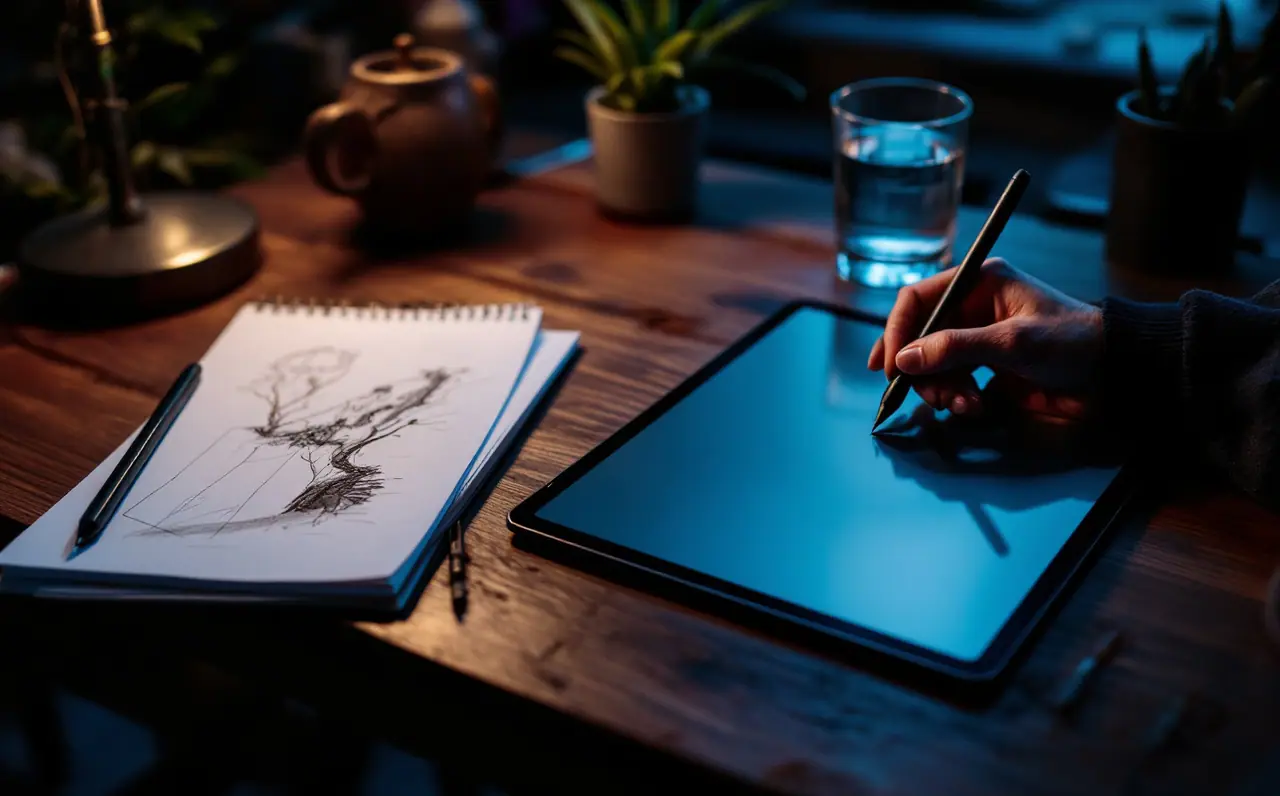
I paint mostly on an iPad, but some of the nicest sketches I have seen on a train came off an Android tablet. The woman across from me was filling a page with commuters in quick gray washes, and her pen had no charging cable, no battery, nothing. She told me she had never charged it once. That small detail sums up Android drawing quite well: there are some genuinely good ideas in it, spread across a wide range of hardware, and the trick is finding the combination of tablet, pen and app that actually works together.
On an iPad, the pen question has one answer per model. On Android it has several, and that is where most disappointments start. This guide is a checklist to work through before you buy, and a map of the apps that make an Android tablet worth drawing on.
The checklist, in the order that matters
Work through these in order. If a tablet fails one of the first three, the rest rarely save it.
- What kind of stylus does it support? This decides pressure, tilt, latency and whether you ever need to charge the pen.
- Is the pen included, and what exactly is it? "Stylus support" in a listing can mean anything from a pressure-sensitive pen in the box to a plain rubber-tipped stick sold separately.
- Do the apps you want read that pen's pressure? Some proprietary pens work beautifully in the maker's own note app and less well elsewhere.
- How big is the screen, and how dense? Size matters more than most specs for drawing comfort.
- Is the display laminated? A laminated screen has less gap between glass and image, so the line appears right under the tip.
- How smooth is the screen refresh? A higher refresh rate makes strokes look more connected to your hand.
- How much memory does it have? Layers and large canvases eat memory fast.
- How long will it get software updates? The maker's support pages usually say. A sketchbook you plan to keep for years deserves a maker who keeps updating it.
The stylus question
Most of the confusion around Android drawing comes from the fact that "stylus" covers very different technologies. Here is how they compare.
| Stylus type | How it works | Pressure | Charging | Where you find it |
|---|---|---|---|---|
| EMR (electromagnetic resonance) | The screen powers the pen through a sensor layer; Wacom developed the approach | Yes, with tilt on many models | None, the pen has no battery | Samsung Galaxy Tab S series (S Pen) and some other tablets |
| Active pens from the tablet maker | Battery-powered pen paired to specific models | Yes, often with tilt | Yes, usually magnetic or USB | Many Lenovo, Xiaomi, OnePlus and Huawei tablets |
| USI pens | An open standard for active pens, so one pen can work across devices that support it | Yes | Yes, or a replaceable battery | Mostly Chromebooks and a few Android tablets |
| Passive capacitive | A soft or disc tip that imitates a fingertip | No | None | Works on any touchscreen |
The EMR pen is the one my train neighbor had. Because the tablet does the work, the pen is light, cheap to replace and never runs flat. Samsung's S Pen is the familiar example, and it has been bundled with the Galaxy Tab S range for many generations. Check the specific model, though, because not every Samsung tablet includes it or supports it.
Maker active pens can be excellent, but they are tied to particular tablets. A pen for one Lenovo model may not work on another, so check the compatibility list on the maker's support page, not just the product photo.
USI pens are worth knowing about if you also use a Chromebook, because a single USI pen can move between supported devices. Support on Android tablets is patchier, so confirm it for the exact model.
Passive capacitive styluses are fine for pointing at things. For drawing, they give you a blunt finger with no pressure, and I would not buy a tablet planning to draw with one.
The apps
Android has a healthy set of drawing apps. They differ more in philosophy than in quality. Pricing models change, so check each store listing for the current terms.
| App | What it is like | Good for |
|---|---|---|
| Infinite Painter | A polished painting app that started on Android, with natural media brushes, layers and perspective guides | Painting and sketching, people who want an iPad-style app |
| ibis Paint X | A popular, feature-heavy app with many brushes, rulers and comic tools | Comics, line art, people who like lots of tools within reach |
| Krita | The desktop open-source painting program, available for Android tablets and Chromebooks | Larger tablets with a keyboard, people who already use Krita on a computer |
| Clip Studio Paint | The same comic and illustration program found on desktop, with the same file format | Comics, manga, illustrators who move files between tablet and computer |
Infinite Painter is the one I would hand a friend who is coming from Procreate. The interface stays out of the way, the brushes feel like they were made by someone who paints, and it reads pressure from the common pen types well.
ibis Paint X is busier, but people who draw comics love it for its rulers, frames and line stabilization. If you are building a habit of clean line art, its stabilizer options are worth exploring.
Krita on a tablet is closest to the full desktop program, which is both its strength and its weight. It shines on a big screen with a keyboard cover attached. On a small tablet held in one hand, the interface can feel crowded. The Krita documentation is thorough, and our Krita for beginners guide covers the basics that apply on any platform.
Clip Studio Paint makes most sense if you already use it on a computer or plan to. Your files and brushes follow you, and the comic tools are among the best anywhere.
Many tablets also ship with the maker's own note and sketch apps. They are worth trying, since they are often tuned for the bundled pen, but they rarely replace a full drawing app.
A worked example: comparing two screens on paper
Screen size and pixel density affect how a drawing app feels, and you can compare tablets before you hold them. Say you are choosing between two models:
- Tablet A: 11 inch screen, 2560 by 1600 pixels.
- Tablet B: 12.4 inch screen, 2800 by 1752 pixels.
To get pixels per inch, find the diagonal in pixels and divide by the diagonal in inches. For Tablet A, the square root of 2560 squared plus 1600 squared is about 3019 pixels, and 3019 divided by 11 is about 274 PPI. For Tablet B, the diagonal is about 3303 pixels, and 3303 divided by 12.4 is about 266 PPI.
So the two screens are almost equally sharp. The real difference is space. Tablet B gives you roughly a quarter more drawing area, which means more room for your hand and the canvas once the app's toolbars take their share. If you sketch at a table or a desk, that extra room is worth a lot. If you draw standing in a crowded carriage, the smaller tablet may be the one you actually take out. Our canvas math page does the PPI sum for you if you would rather not reach for a calculator.
Things that feel different from an iPad
A few habits carry over badly, and knowing them saves an awkward first week.
Palm rejection depends on the app as much as the tablet. Most good drawing apps have a setting to ignore touch while the pen is near the screen, or to allow pen-only drawing. Turn it on before you judge the tablet.
Pressure curves need tuning. Every pen and hand pair is different, and on Android the variation between pens is wider. Spend ten minutes in the app's pressure settings before you decide a pen feels wrong. Our guide to pressure curves explains what the curve is doing and how to shape it.
Glass is slippery on every tablet. If the pen skates, a matte film helps, with the trade-offs we lay out in our piece on paper-feel screen protectors.
Battery saver modes can throttle performance. If brushes lag on a big canvas, check that the tablet is not in a power saving mode, and close other apps.
Questions people ask
Can an Android tablet replace an iPad for drawing?
For many people, yes, especially with a good EMR or maker pen and an app like Infinite Painter or Clip Studio Paint. The difference is that you have to choose the combination carefully, while an iPad and its pencil come as a known pair.
Do I need the top model in a range?
Not always, but the pen support is often what separates the models. A cheaper sibling may lack the pen, the laminated screen or the refresh rate. Compare the spec pages line by line rather than going by the name.
Will my S Pen work on other brands?
The S Pen is built around Samsung's tablets and phones. Other EMR devices exist, but compatibility is not guaranteed. Treat any cross-brand use as a pleasant surprise, not a plan.
How much storage do I need?
Drawing files grow with canvas size and layer count. If you work at print sizes with many layers, more storage and more memory both help. Check whether the tablet takes a memory card, which is a cheap way to archive finished work.
Pick the pen first, then the app, then the screen. If you only remember one line from this, let it be that one, and the rest of the choice gets much easier.

Yuna Castellan
Yuna paints mostly on an iPad, on trains, at kitchen tables and in cafes. She covers mobile drawing, brushes, screen films and getting a stylus to feel like something you want to hold.
More from the same shelf
Paper-feel screen protectors: what they change and what they cost you
Matte films make a tablet feel more like paper, but they wear nibs, soften the picture and fight with glare. Here is the full trade, and how to fit one.
Open the piece →
Procreate brush basics: the few settings that change everything
StreamLine, taper, pressure, shape and grain: the handful of Procreate brush settings worth learning first, and how to edit a brush without breaking it.
Open the piece →