
Procreate brush basics: the few settings that change everything
StreamLine, taper, pressure, shape and grain: the handful of Procreate brush settings worth learning first, and how to edit a brush without breaking it.
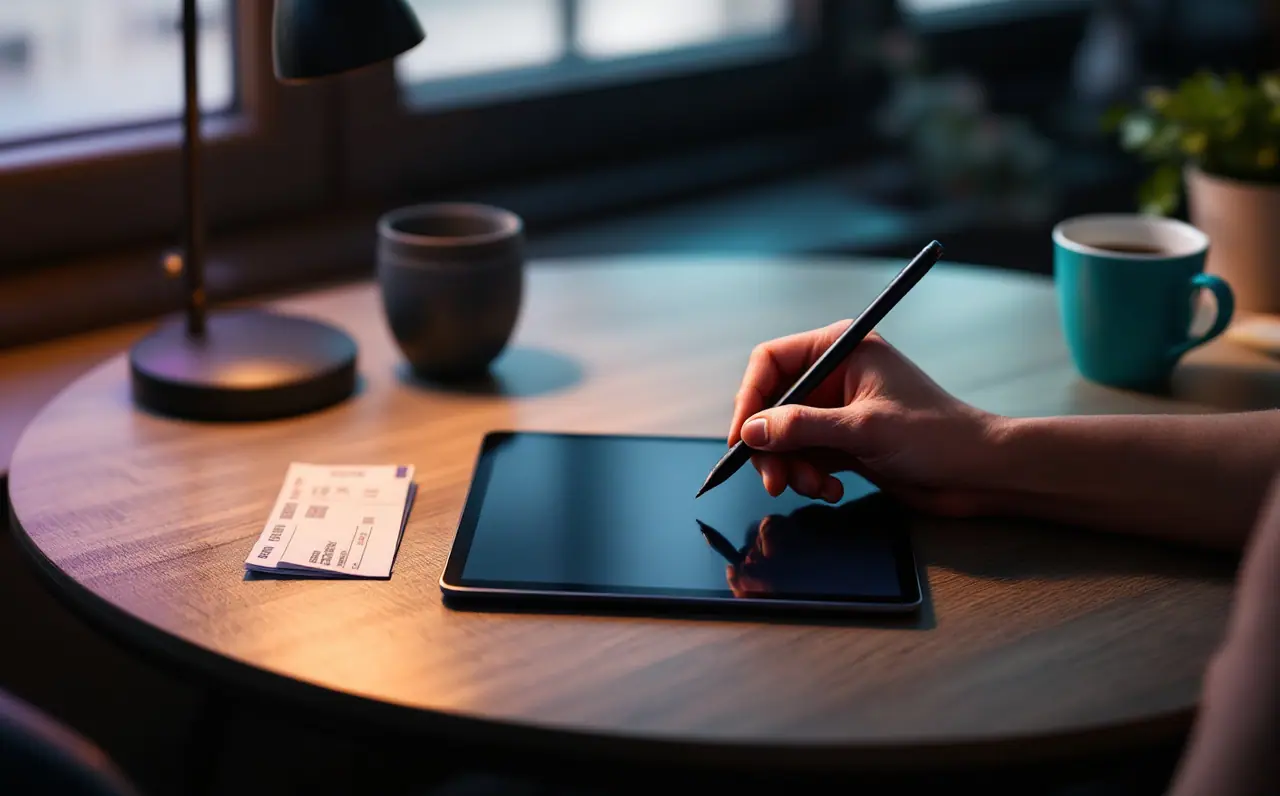
The first time I opened the Brush Studio in Procreate, I closed it again within a minute. There were sliders inside tabs inside panels, a little drawing pad that scribbled back at me, and words like "azimuth" and "burnt edges". I went back to the default library and stayed there for months, which was fine, because the default brushes are good. But every brush I liked had one small thing I wished were different, and it took me far too long to learn that most of those wishes live in five or six settings.
This piece is about those settings. Not all of them, just the ones that change how a brush feels under your hand. If you learn these and ignore the rest for a while, you will be able to fix nearly every "almost right" brush you own.
Before you touch anything: duplicate
Procreate lets you edit any brush, including the built-in ones, and it remembers your changes. That sounds generous until you have nudged six sliders on your favorite pencil and can no longer remember what it felt like before.
So the habit comes first. In the brush library, swipe left on a brush and you will see options to share, duplicate or delete it. Duplicate, then open the copy. The original stays where it was, untouched, and the copy appears right under it. In recent versions, built-in brushes also have a reset option tucked into the last section of the Brush Studio (usually called something like "About this brush"), but I would not rely on it. A duplicate costs nothing and saves arguments with yourself.
I also make a brush set just for experiments and drag copies there. On a train I can play with a brush for twenty minutes, and if it goes badly, the whole set gets deleted with one swipe and my real brushes never noticed.
StreamLine: the setting people feel first
StreamLine smooths your stroke as you draw. Your hand wobbles a little, the line on screen wobbles less. Turn it up and the line starts to lag behind the pencil tip, then catches up in a smooth curve. Turn it down and the line follows every tremor faithfully.
You will find it in the stabilization section of the Brush Studio in recent versions, alongside a couple of related options (a separate "Stabilization" slider and a "Motion filtering" setting for removing jitter). The names have shifted between updates, so look for the panel that talks about smoothing your stroke.
How much is right depends on what the brush is for:
- Inking brushes for clean outlines can take a lot of StreamLine. Long curves come out confident.
- Sketching pencils want very little. A sketch is supposed to show your thinking, wobbles included.
- Painting brushes for blocking in color usually want none, because lag makes quick dabs land in the wrong place.
One thing that surprised me: StreamLine changes how a brush feels on a moving train more than any other setting. The carriage bumps, your hand jumps, and a brush with a touch of smoothing quietly absorbs it. I keep a "train" duplicate of my inking brush with a bit more StreamLine than the original for exactly this.
Macagora note A few links here go to Amazon and to other stores and services, and Macagora can earn a commission when you buy through them. As an Amazon Associate I earn from qualifying purchases.
Taper: the ends of the stroke
Taper controls how a stroke starts and finishes. A strong taper gives you the pointed tips of a brush pen. No taper gives you blunt ends, like a felt marker.
Procreate separates taper into pressure taper (for the pencil) and touch taper (for fingers). For drawing with a stylus, pressure taper is the one you care about. There is a two-ended slider: drag the left end to set how long the start taper is, the right end for the finish. Beneath it, a "Size" setting controls how thin the tip gets, and a "Tip" or "Tip animation" option affects how the taper renders while you draw.
If your line art looks lumpy at the ends of strokes, it is often the taper, not your hand. A common fix is to shorten the start taper slightly so short hatching strokes still get some body, and keep a longer finish taper so lines thin out gracefully as you lift.
Pressure response: size, opacity, flow
This is the setting that makes a brush feel alive, and it lives in the section for the stylus (in recent versions, a panel named after the pencil). The key sliders are:
| Setting | What pressure changes | When to raise it |
|---|---|---|
| Size | How much wider the stroke gets as you press | Line art, brush pens, expressive sketching |
| Opacity | How much darker the stroke gets as you press | Pencils, soft shading, glazing |
| Flow | How much paint each dab deposits | Airbrush-like build-up, watercolor feel |
| Bleed | How much the edges soften with light pressure | Textured, painterly brushes |
A brush with pressure on size but none on opacity feels like a pen: thick and thin, always dark. A brush with pressure on opacity but none on size feels like a pencil: same width, lighter when you press lightly. Most of the pencils you have liked over the years are some mix of the two.
Remember that there are two layers of pressure. Each brush has its own sliders, and Procreate also has a global pressure curve in its preferences, which reshapes how your whole hand reads to every brush. If every brush feels too heavy, adjust the global curve once rather than editing twenty brushes. If only one brush feels off, edit that brush. The pencil itself matters too; a second generation Apple Pencil reports pressure and tilt (not every Apple Pencil model senses pressure, so check Apple's comparison page for yours), but each person's hand pushes differently, which is exactly why these curves exist.
Shape: what a single dab looks like
Every Procreate brush is built from a shape stamped over and over along your stroke. The shape is a small grayscale image. Procreate reads light areas as paint and dark areas as empty, so a white circle on black gives you a round brush, and a white smudge with rough edges gives you something closer to a dry bristle.
In the shape section you can:
- swap the shape source for one from Procreate's built-in library or an image of your own,
- set scatter, which rotates each dab randomly,
- set rotation, so the shape turns with the direction of your stroke or stays fixed,
- turn on randomized, so each new stroke starts at a different angle,
- change the roundness, which squashes a round tip into an oval like a chisel nib.
The rotation setting is the one that changes everything for flat brushes. A flat shape that follows the stroke direction behaves like a real flat brush: thin when you pull sideways, wide when you pull forward. A flat shape that stays fixed behaves like a calligraphy pen held at one angle. Neither is wrong. They are different brushes.
Grain: the paper or the bristles
Grain is a second image, a texture that sits inside the shape. If the shape decides the outline of each dab, the grain decides what happens inside it. A pencil brush gets its tooth from grain, a chalk brush gets its patchiness from grain.
The most important grain setting is the behavior, which in recent versions offers two modes:
- Moving: the grain travels with each dab, so the texture follows the stroke. This reads as bristles or a brush that drags its own texture along.
- Texturized: the grain stays fixed to the canvas, like paper underneath. Every stroke reveals the same texture in the same place, the way graphite catches on the bumps of real paper.
If your pencil looks like it is stamping a pattern, switch it to texturized. If your painterly brush looks like it is printing on wallpaper, try moving. Then play with the grain scale and depth. Scale makes the texture coarser or finer; depth controls how strongly it shows.
A worked example: fixing a pencil in ten minutes
Here is an edit I make constantly. I like a soft sketching pencil for loose drawings on the go, but the default versions often feel a bit too smooth to me, with lines that look printed rather than drawn. Here is the order I work in, using a duplicate.
- Open the copy and draw three test marks on the drawing pad: a light zigzag, a heavy zigzag, and a slow curve from light to heavy pressure.
- Look at the light zigzag. If it barely shows, the opacity pressure is too steep. Pull it down a little so light strokes still leave a mark.
- Look at the heavy zigzag. If it is far wider than the light one, the size pressure is doing too much for a pencil. Reduce it until the width changes only slightly.
- Look at the slow curve. If it is perfectly smooth, set the grain to texturized and raise the depth a touch so the paper starts to show.
- Check StreamLine. For a sketching pencil, I keep it very low so the line stays honest.
- Draw the three marks again and compare with the original brush on a real canvas, side by side.
Ten minutes, three test marks, one change at a time. The temptation is to move five sliders at once, and then you cannot tell which one helped. Changing one setting per test is slow for about two brushes, then it becomes second nature.
Where to look when a brush feels wrong
When a brush disappoints, I run through this short list before I start changing things:
| The problem | First setting to check |
|---|---|
| Lines look wobbly | StreamLine and stabilization |
| Lines lag behind the pencil | StreamLine set too high |
| Stroke ends look blunt or blobby | Pressure taper |
| Light pressure does nothing | Opacity or size pressure, then the global curve |
| Texture looks stamped and repeating | Grain behavior (try texturized) and grain scale |
| Flat brush feels like a round one | Shape rotation and roundness |
| Brush looks perfect but too small or too large | Size limits in the properties section |
The size limits deserve a word. Each brush has a maximum and minimum size range, and the size slider in the sidebar moves within that range. If your brush can never get small enough for a detail, lower the minimum. If it jumps from tiny to huge with a small nudge, lower the maximum, and the sidebar slider gets more precision where you actually work.
A few habits that save time
I keep a short note inside the "About this brush" section of brushes I have edited. Procreate lets you rename a brush and add a signature, and I use the name itself as a reminder: "Pencil soft, texturized grain, low SL". When I come back to it weeks later on a different train, I know what I did.
I also export the brush sets I care about. A shared brush becomes a small file you can save to your Files app, and a backup of your brushes is worth more than a backup of most sketches. If you ever change iPads or restore from a backup, your custom brushes come along.
Finally, I try to keep a small library. Every brush I import or duplicate goes into a scratch set first. Only the ones I reach for in a real drawing get promoted to my main set. A handful of brushes you know well will carry a drawing further than a hundred you scroll past.
For the full list of every slider, the official Procreate Handbook is the reference to keep open, and it is updated as the app changes. If you are still deciding what to draw on in the first place, our guide to choosing your first drawing tablet and the comparison of pen displays and pen tablets cover the hardware side, and the mobile drawing section collects everything else about painting on an iPad. Start with one duplicate brush and three test marks. That is the whole method, repeated.

Yuna Castellan
Yuna paints mostly on an iPad, on trains, at kitchen tables and in cafes. She covers mobile drawing, brushes, screen films and getting a stylus to feel like something you want to hold.
More from the same shelf
Getting canvas size and DPI right for print before you start
How to turn a print size into pixels before you paint: the one formula, worked examples for 8 x 10 and A4, bleed, aspect ratios and what 300 DPI really means.
Open the piece →
Layers and blend modes for painters who hate menus
Multiply, screen, overlay, color, clipping masks and alpha lock explained for painters, with a short layer workflow that keeps a painting tidy and editable.
Open the piece →
Paper-feel screen protectors: what they change and what they cost you
Matte films make a tablet feel more like paper, but they wear nibs, soften the picture and fight with glare. Here is the full trade, and how to fit one.
Open the piece →