
How to choose your first drawing tablet
Size, pressure, tilt, drivers and what each tier really gets you: a plain guide to picking a first drawing tablet you will still like a year from now.
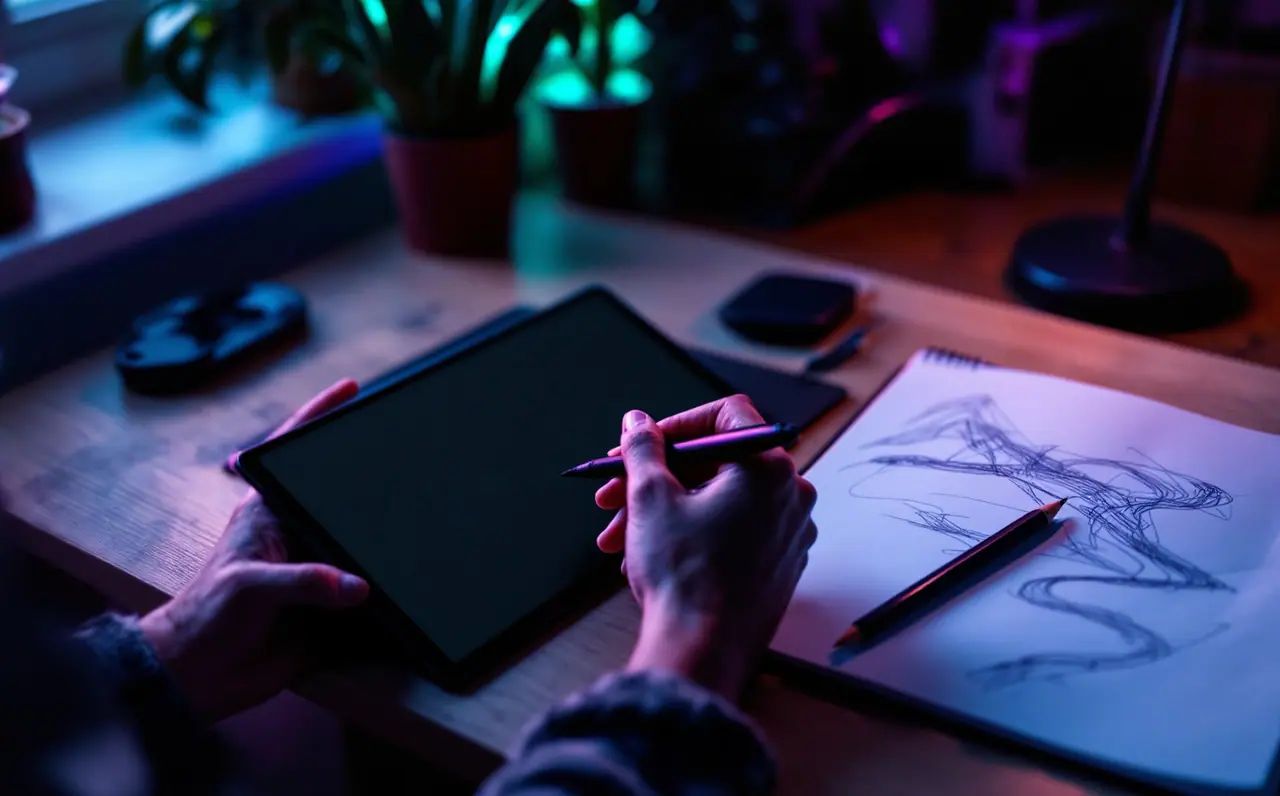
Most first tablets get chosen backwards. People open a spec sheet, get hypnotized by a pressure number, and end up with something the wrong size for their monitor and their desk. The pressure number was never the problem. This guide goes the other way round: start with how you sit and draw, work outward to the specs, and stop as soon as the remaining differences stop mattering.
One thing up front, because it takes some pressure off. Every tablet from the established makers is good enough to learn on. Wacom, Huion, XP-Pen and a few others all make pens that track well and respond to pressure. You are not choosing between a working tool and a broken one. You are choosing between small trade-offs, and the right trade-off depends on your hand, your screen and your patience.
Macagora note A few links here go to Amazon. As an Amazon Associate I earn from qualifying purchases.
First decision: screen or no screen
There are two families. A screenless pen tablet (also called a graphics tablet) is a flat pad you draw on while looking at your monitor. A pen display has a screen built in, so you draw directly on the picture.
For a first tablet I lean toward screenless, for three dull reasons. It costs less, so a wrong guess hurts less. It needs almost no desk space and one USB lead. And it keeps your head up, looking at a monitor at a sensible height, instead of folded over a screen lying on the desk.
The catch is the famous first week. Drawing in one place while watching another feels strange, and your first lines will wobble as if you drew them on a bus. Most people settle in after a few days to a couple of weeks of regular drawing. If you already know you will hate that, or you mostly ink over finished sketches and need to land every line exactly, a display can make sense from day one. For everyone else, assume screenless for now and see whether anything below changes your mind.
Size: match the tablet to your monitor and your arm
Size is the choice people get wrong most often, and it is about the active area (the part that senses the pen), not the outside dimensions of the slab. The active area is mapped to your whole monitor, so the real question is how far your hand moves to cross the screen.
Here is a worked example you can redo for your own setup. A 27-inch monitor with a 16:9 shape is roughly 23.5 inches wide and 13.2 inches tall. (The diagonal times 0.872 gives the width, times 0.49 gives the height; the screen calculator does this for any size.) Now divide the screen width by the tablet's active width:
| Tablet class | Typical active area | On a 27-inch monitor, 1 inch of hand movement covers |
|---|---|---|
| Small | about 6 x 3.7 in (152 x 95 mm) | about 3.9 inches of screen |
| Medium | about 8.5 x 5.3 in (216 x 135 mm) | about 2.8 inches of screen |
| Large | about 12 x 8 in or more | about 2 inches of screen |
Those active areas are typical published figures for each class, not one model's spec. Check the maker's spec page for the exact tablet you are looking at.
What the ratio means in practice: on a small tablet with a big monitor, a tiny tremor in your fingers becomes a visible wobble on screen. Small tablets suit people who draw from the wrist and fingers, and they pair well with laptops and monitors up to about 24 inches. A medium-sized screenless tablet lets you bring in more of the forearm, which usually gives smoother long curves, and it is the safest default for a desktop monitor. Large tablets are lovely for gesture drawing from the elbow and shoulder, but they swallow a desk and are awkward to place beside a keyboard.
My rough rule: monitor of 24 inches or less, small is fine. Bigger than that, or you already draw big loose lines in a sketchbook, go medium. Only go large after measuring the desk.
And do measure. A medium tablet's body is roughly the footprint of a sheet of letter or A4 paper lying sideways. Put a sheet where the tablet would sit, with your keyboard in its usual place. If your mouse now has nowhere to live, you learned that for the price of one sheet of paper. Drivers can shrink the mapped area on a tablet that turned out too big, but that is a repair, not a plan.
Pressure levels: the spec that matters least
Many current tablets list 8,192 pressure levels, and some newer pens advertise 16,384. That number gets the biggest type on the box. It deserves the least of your attention. Your hand cannot reliably produce thousands of distinct pressures, and past a couple of thousand levels the difference is very hard to feel.
Two things matter more than the headline number:
- How lightly the pen starts marking. This is often called initial activation force. A pen that registers a very gentle touch makes soft sketching and fine hatching easier. Some makers publish it on the spec page; if they do, it is a better comparison point than the level count.
- The pressure curve in the driver. Every major driver lets you change how hard you need to press to reach full pressure. A pen that feels stiff out of the box is often one slider away from feeling right.
So read 8,192 as "fine", and read 2,048 on older or very basic models as "also fine for learning". Do not pay to go up a tier for the number alone.
Tilt and the pen itself
Tilt support means the pen reports the angle you hold it at, commonly up to about 60 degrees in each direction on models that have it. Krita, Clip Studio Paint and Photoshop can use tilt to shape brushes, so a pencil brush shades with its side the way a real pencil does. It is a nice extra. If two otherwise equal tablets differ only in tilt, take the one with tilt. If tilt pushes you into a higher tier, leave it for your second tablet.
The pen deserves more scrutiny than tilt does. Look for:
- A battery-free pen. Most current pens from the big makers are powered by the tablet itself, so there is nothing to charge. Some older or cheaper designs need a battery, which adds weight and one more thing to go flat halfway through a drawing.
- A grip you could hold for an hour. Fat pens suit some hands, slim pens suit others. If a shop near you has demo units, a minute of holding beats any review.
- Side buttons where your thumb already rests. You will map them to undo or the color picker, so they have to be reachable without shifting your grip.
- Spare nibs in the box. Nibs wear down. A few spares in the drawer turn a worn nib into a two-minute job instead of an order and a wait.
Drivers and compatibility: the boring part that decides your mood
A tablet is only as pleasant as its driver. Before you choose, open the maker's driver download page and look for your exact operating system. Check three things:
- There is a driver for your OS version, and it has been updated reasonably recently.
- The driver allows per-app settings, so a button can do one thing in Krita and another in Photoshop.
- If you use Linux, a Chromebook or an Android phone, your specific model is listed. Support varies a lot between models from the same brand.
Wacom tablets have long been supported by drivers built into most Linux distributions, and Huion and XP-Pen publish Linux drivers for many of their models. Chromebook and Android support depends on the model, so the spec page is the only answer worth trusting.
On Windows, most painting apps can switch between Windows Ink and the older Wintab mode in their tablet settings. If pressure ever misbehaves, flipping that setting is the first thing to try, before you blame the hardware.
Wired, wireless and the extra buttons
Wired USB is simple and never needs charging. Bluetooth versions clear the desk but put a battery in the tablet and add a pairing step. For a desk that never moves, wired is fine. For drawing on a laptop on the sofa, wireless earns its keep.
Express keys, the buttons on the tablet body, are handy once you know what you want on them. Some people set them up once and forget them; others keep a hand on the keyboard and never touch them. Four to eight keys is plenty to start with. A dial or touch ring is pleasant for brush size and zoom but not essential.
What each tier tends to get you
No prices here, because they move all the time, but the tiers themselves are stable.
| Tier | What you usually get | Who it suits |
|---|---|---|
| Entry | Small or medium size, battery-free pen, 8,192 levels (2,048 on older stock), often no tilt, a few keys, wired USB | First-year learners, laptop users, anyone unsure they will stick with it |
| Middle | Larger sizes, tilt, more keys, sometimes Bluetooth or a dial, better surface texture | People who already draw daily and know what bugs them |
| Upper | Refined pens, alternative nibs and pens, replaceable surfaces, long driver support, lots of controls | Regular paid work, long sessions, picky hands |
A small screenless tablet from the entry tier is all most beginners need for their first year. The biggest jump in your drawing comes from going from no tablet to any decent tablet. Every jump after that is smaller than the box suggests.
A short checklist before you order
- Monitor measured, tablet class chosen from the ratio above.
- Desk spot tested with a sheet of paper.
- Driver page checked for your operating system and your painting app.
- Battery-free pen, spare nibs included.
- Pressure of 2,048 or more, and no extra spending for a bigger number.
- Tilt if it fits the tier you picked, never as the reason to move up a tier.
When it arrives, give the first evening to setup rather than drawing: install the driver from the maker's site, set the pressure curve so a relaxed stroke reaches about two thirds of full pressure, and map the lower pen button to undo. Then keep the box and packing for the length of the return window. If the size turns out wrong in the first fortnight, you want that to be an inconvenience, not a regret. More gear notes live on the drawing desk page, and the pen tablets section collects the hardware guides as they come.

Darius Fenn
Darius moved from pencil sketchbooks to a small pen tablet years ago and kept going. He writes the hardware pieces here: pen tablets, pen displays, nibs, drivers and how to buy second hand without regret.
More from the same shelf
Setting up express keys and shortcuts you will actually use
A step-by-step way to map pen buttons, express keys and dials to undo, brush size, color picking and rotation, with per-app profiles and keyboard backups.
Open the piece →
Pressure curves explained, and the mistakes I made with mine
What a pressure curve does, where the driver and app versions live, how to tune one with a simple stroke test, and the mistakes that make a good pen feel bad.
Open the piece →
Pen display or pen tablet: which one suits the way you draw
Hand-eye learning curve, parallax, heat, desk depth, posture and cost, weighed one at a time, so you can tell whether a screen under the pen is worth it.
Open the piece →