
Setting up express keys and shortcuts you will actually use
A step-by-step way to map pen buttons, express keys and dials to undo, brush size, color picking and rotation, with per-app profiles and keyboard backups.
Express keys have a strange life cycle. People unbox a tablet, map all eight buttons to something impressive, forget what half of them do within a week, and go back to the keyboard. The buttons then sit there for years, occasionally triggering a fill bucket when an elbow leans on them. This guide sets them up the other way: from what you actually do while drawing, a few at a time, in an order that sticks.
It works for screenless tablets and pen displays, and for Wacom, Huion, XP-Pen and most other drivers, because they all do the same basic things with slightly different menus.
Step 1: find out what you reach for
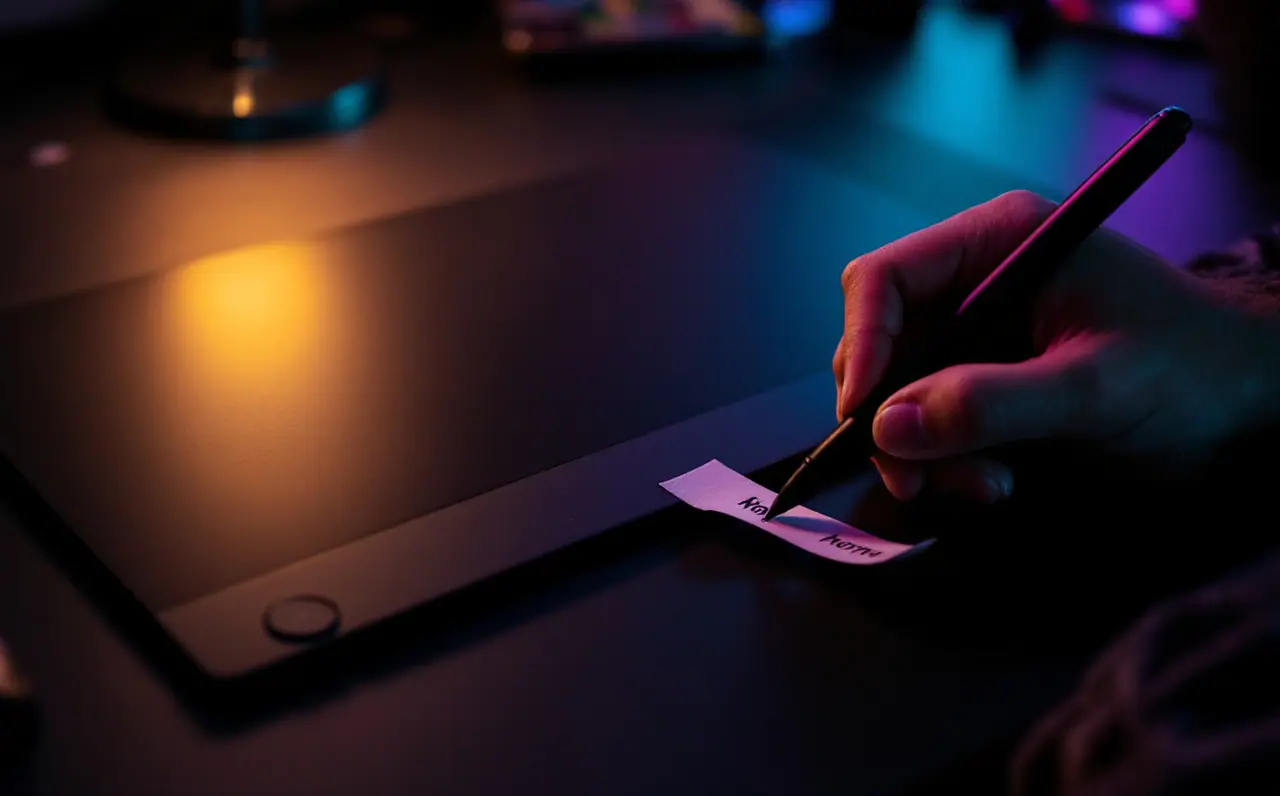
Before opening the driver, draw normally for one session with a sticky note next to the keyboard. Every time you reach for a shortcut or a menu, make a tally mark next to a word: undo, size, picker, zoom, pan, rotate, flip, eraser, layer. Do not change how you work; you are just counting.
Most people end up with the same top five: undo, brush size, color picker, pan and zoom. Rotate and flip come next for anyone drawing faces or figures. Your sheet may say something different, and your sheet wins. Whatever ends up at the bottom of the list does not belong on a button.
Step 2: set the two pen buttons first
The buttons on the pen are the most valuable controls you have, because your hand is already there. They come mapped to right-click and middle-click (or pan) by default in many drivers, which is sensible for office work and a waste for drawing.
A setup that suits a lot of people:
- Lower button (the one nearer the nib): undo. Your thumb finds it without thinking, and undo is usually the top tally.
- Upper button: pan, or hold-to-pick color.
If your painting app uses right-click for something you like, such as Krita's pop-up palette with brushes and colors in a ring around the cursor, keep right-click on one pen button and put undo on an express key instead.
While you are in the pen settings, look for a double-click distance or similar tip option too, so a slightly shaky double tap does not get read as a drag.
Macagora note A few links here go to Amazon. As an Amazon Associate I earn from qualifying purchases.
Step 3: choose between keystrokes and held modifiers
Drivers let you assign an express key either to a keystroke (pressed once) or to a modifier such as Ctrl, Alt, Shift or Space, which stays held for as long as you hold the button down. This distinction matters more than anything else in the setup.
Tools that are momentary in your app should go on held modifiers. In many programs, holding Space while dragging pans the canvas, and holding a modifier while tapping switches to the color picker. On a held button these feel natural: press, do the thing, let go, and you are back on your brush.
Single actions such as undo, flip or "new layer" go on keystrokes. On a Mac, read Ctrl as Cmd and Alt as Option in everything below.
Step 4: map the express keys in a worked layout
Here is a six-key layout built from the typical tally, with the default shortcuts in two common apps. Defaults change between versions and you may have customized yours, so confirm each one in the app's keyboard shortcut settings before typing it into the driver.
| Key | Action | Type | Krita default | Photoshop default |
|---|---|---|---|---|
| 1 | Undo | Keystroke | Ctrl+Z | Ctrl+Z |
| 2 | Redo | Keystroke | Ctrl+Shift+Z | Ctrl+Shift+Z |
| 3 | Color picker | Held modifier | hold Ctrl | hold Alt (with a brush tool active) |
| 4 | Pan | Held modifier | hold Space | hold Space |
| 5 | Smaller brush | Keystroke | [ | [ |
| 6 | Bigger brush | Keystroke | ] | ] |
Clip Studio Paint and Affinity apps use their own defaults for some of these, so look them up in their shortcut settings rather than copying the table.
Notice what is missing: zoom, rotate and flip. Those go on a dial or touch ring if your tablet has one (Step 5), or on the keyboard (Step 7). Six well-chosen keys you can find without looking beat eight you have to glance at.
Put the most used actions on the keys nearest your resting hand, and keep undo on the same physical key in every app. Position becomes muscle memory long before labels do.
Step 5: give the dial or ring one job, two at most
Touch rings and dials are good at anything continuous: brush size, zoom and canvas rotation. Most drivers let one ring cycle through several modes with a center button. In practice, two modes is the limit before you lose track of which one is active and rotate the canvas when you meant to zoom.
A reasonable pairing: zoom as the main mode, brush size as the second. If your app makes rotation awkward from the keyboard, swap rotation in for brush size, since the [ and ] keys already handle size on the express keys.
Step 6: make per-app profiles
Every major driver can store different settings for different programs, usually under a section called application settings or app-specific settings. The driver detects which program is in front and swaps the layout automatically.
Set up the layout above as the default for all applications, then add a profile for each painting app and change only what differs. For the color picker, that means Ctrl in Krita and Alt in Photoshop on the same physical button. Keep undo identical everywhere.
Two habits make profiles less fragile:
- After a driver update, open the settings once and check the profiles survived. Most of the time they do. When they do not, it is better to find out before a deadline.
- If the driver can export settings to a file, export it and keep it with your brushes. Reinstalling then takes a minute.
Step 7: keep a keyboard backup for everything else
There is a reason many illustrators ignore express keys entirely: a keyboard under the left hand is a large, cheap, well-labelled button panel. If your tablet sits in front of you and the keyboard sits to the left, you can rest your fingers on a small cluster around Space, Ctrl, Alt, Shift, Z and the bracket keys, and reach almost everything from Step 1.
For rarer actions, the keyboard is better anyway. Krita flips the canvas horizontally with M by default, and Photoshop lets you assign flip to any key in its keyboard shortcut editor. Rotation has defaults in both (Krita's documentation lists them, and in recent Photoshop versions holding R gives you the rotate view tool). These are actions you use a few times per drawing, which is not enough to earn a button.
People who want a dedicated panel without a full keyboard often use a separate number pad or a small macro keypad, mapped through the app's own shortcut settings. That works with any tablet, and it survives switching tablet brands. The Krita manual has a full list of its default shortcuts if you want to plan a layout like that.
Step 8: label, live with it, change one thing
Write the layout down. A strip of masking tape along the express keys with tiny labels looks scrappy and works well for the first fortnight, after which you can peel it off because your fingers know.
Then use it for a week without changing anything. If a mapping still feels wrong after a week, change only that one button. Changing several at once resets all the muscle memory you just built, and you end up back at the sticky note.
A quick check on comfort
Holding a modifier down with one finger for a long time can be tiring, so swap the hold actions between fingers if one starts to ache, and keep the tablet close enough that your non-drawing hand rests rather than reaches. The wrist-friendly desk setup guide covers placement in more detail. If you get ongoing pain or numbness in your hands or wrists, see a doctor or physiotherapist rather than adjusting settings to work around it.
If you are still choosing a tablet, the number of express keys is a weak reason to pick one model over another, as the guide to choosing your first drawing tablet explains. And if you are new to Krita, its beginner guide shows where the shortcut settings live. A good final test of your layout: draw a quick figure without looking at the tablet's buttons once. Any button you had to look for belongs on the keyboard instead.

Darius Fenn
Darius moved from pencil sketchbooks to a small pen tablet years ago and kept going. He writes the hardware pieces here: pen tablets, pen displays, nibs, drivers and how to buy second hand without regret.
More from the same shelf
Pressure curves explained, and the mistakes I made with mine
What a pressure curve does, where the driver and app versions live, how to tune one with a simple stroke test, and the mistakes that make a good pen feel bad.
Open the piece →
Pen display or pen tablet: which one suits the way you draw
Hand-eye learning curve, parallax, heat, desk depth, posture and cost, weighed one at a time, so you can tell whether a screen under the pen is worth it.
Open the piece →
How to choose your first drawing tablet
Size, pressure, tilt, drivers and what each tier really gets you: a plain guide to picking a first drawing tablet you will still like a year from now.
Open the piece →